
 TunesKit iPhone Unlocker
 Typeface
 Trimma
 Typinator
 Transmit
 Traktor Pro
 TouchDesigner
 Topaz Video AI


Version 2023.1 tidies up a small but annoying flaw: files copied to NTFS volumes no longer risk showing incorrect date or time stamps.
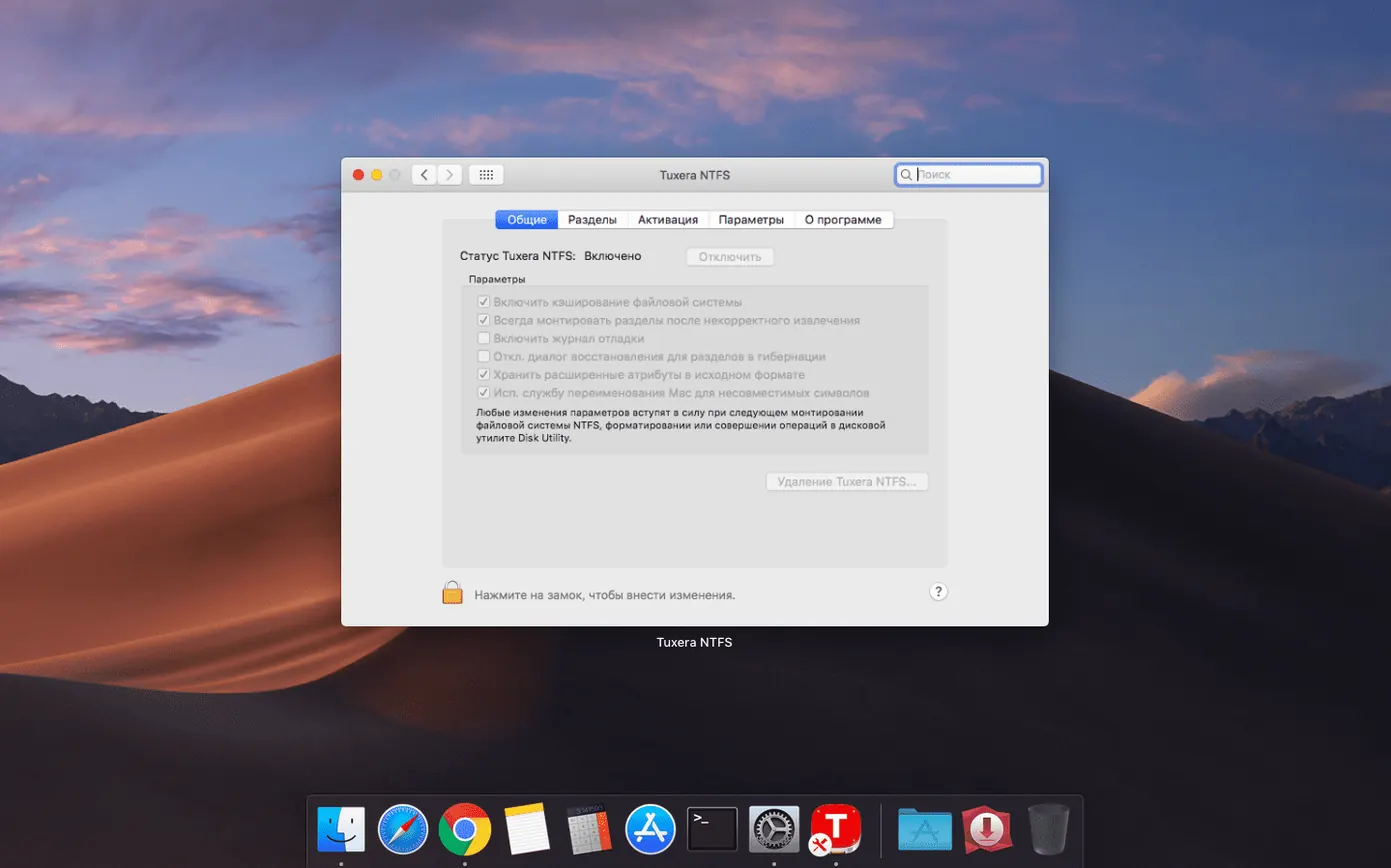
A file system driver that lets macOS read from and write to Windows NTFS drives. No workarounds, no reformatting.
Anyone who regularly moves external drives between a PC and a Mac, or runs Windows and macOS on the same machine. USB drives formatted in Windows work as normal.
Yes. Files stay accessible when Windows runs inside a virtual machine on your Mac.
Three names come up whenever Mac users need NTFS write support: Tuxera NTFS, Paragon NTFS for Mac, and the open-source NTFS-3G with FUSE for macOS. They all solve the same basic problem, but the feel is different once you start using them day to day.
Paragon NTFS for Mac is the closest peer. It offers a similar kernel-level driver and a clean System Preferences pane. In use, Paragon sometimes edges ahead on raw copy speeds for very large single files, while Tuxera tends to handle directories full of tiny files with fewer hiccups. Tuxera also includes a repair tool for NTFS volumes right out of the box — Paragon leans more on third-party utilities for that job. For someone juggling a dual-boot setup, both work well, but Tuxera’s caching layer is a bit kinder to drives that get unplugged without ejecting, which happens more often than anyone admits.
NTFS-3G (often paired with FUSE for macOS or macFUSE) is the free, community-driven route. It works, and for occasional use it’s perfectly fine. The trade-off is speed. Copying a 20 GB folder over USB 3 with NTFS-3G can take noticeably longer than with Tuxera, and CPU usage sits higher during transfers. There’s no built-in repair tool, no disk image creation, and you’ll need comfort with terminal commands if something goes sideways. For a drive that shuttles between machines every day, the paid drivers earn their keep in minutes saved and stress avoided.
Which one suits you? If you only touch an NTFS drive once a month, the free tools get the job done. If Windows drives are part of your daily workflow — editing video off an external SSD, running backups to a shared drive — Tuxera’s combination of speed, caching smarts, and the repair utility makes it the more practical long-term pick. The 2023.1 timestamp fix is exactly the kind of small, real-world polish that matters when you’re syncing files between operating systems and need modification dates to stay accurate.
Here’s how a typical afternoon looks with Tuxera NTFS installed and a Windows-formatted portable SSD in hand.
1. Plug in the drive. It mounts silently. The icon appears on the desktop and in Finder sidebars, same as any Mac-formatted volume. No prompt, no extra step.
2. Open a project folder. On the drive is a folder called Client_Assets from yesterday’s Windows laptop session. Double-click it. Finder lists everything at native speed — thumbnails for PSDs and PNGs pop in without the lag that sometimes plagues FUSE-based setups.
3. Drag a batch of exports over. Select a dozen edited photos from the Mac’s internal storage and drop them onto the NTFS drive. The copy dialog shows a steady progress bar. The files land with correct names, correct extensions, and — thanks to the 2023.1 update — correct timestamps.
4. Rename and reorganise. Right-click a folder, rename it, create a new subfolder, shuffle a couple of PDFs. Every action feels native. There’s no sense of “this is a foreign drive” beyond the different icon badge in Finder.
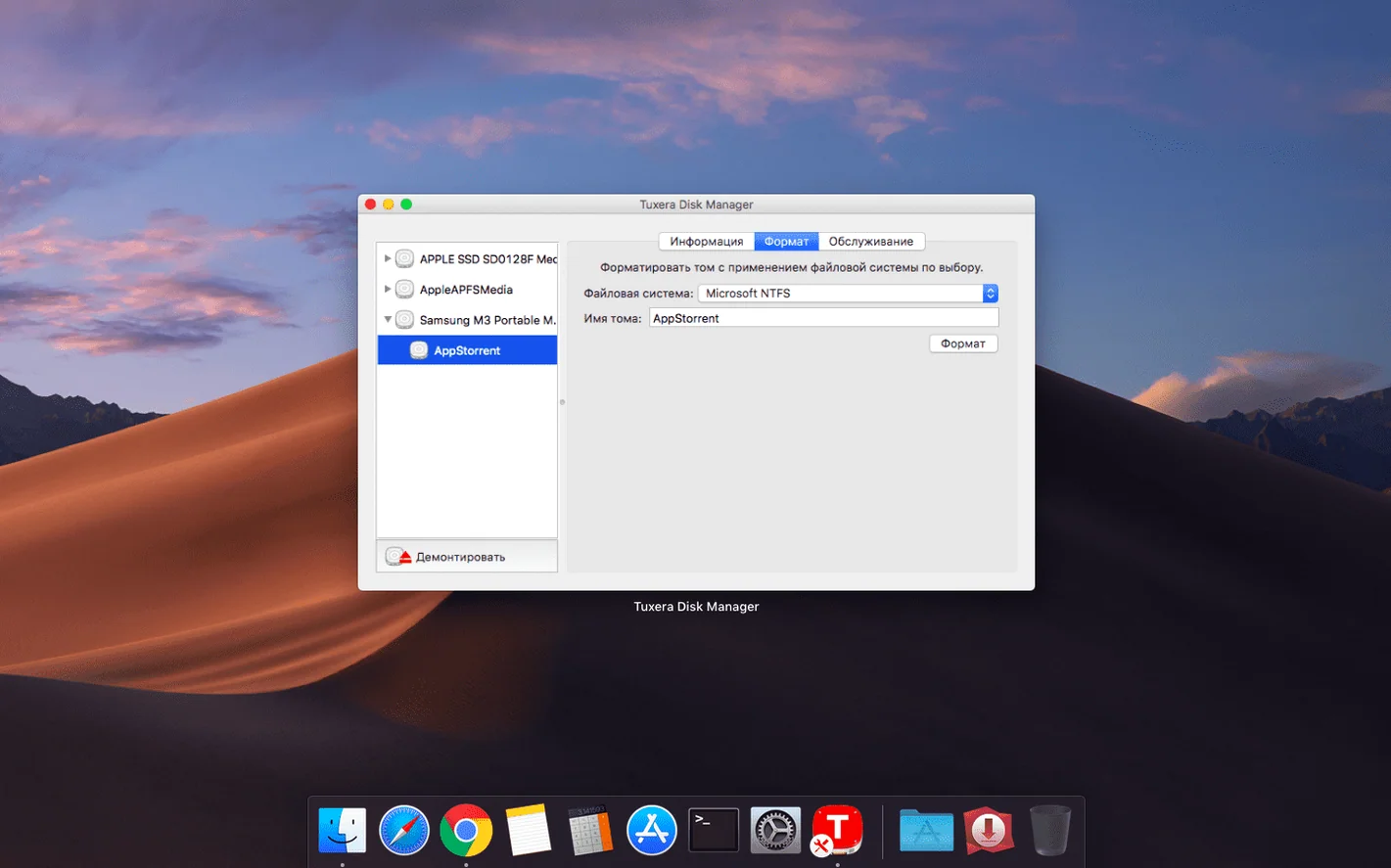
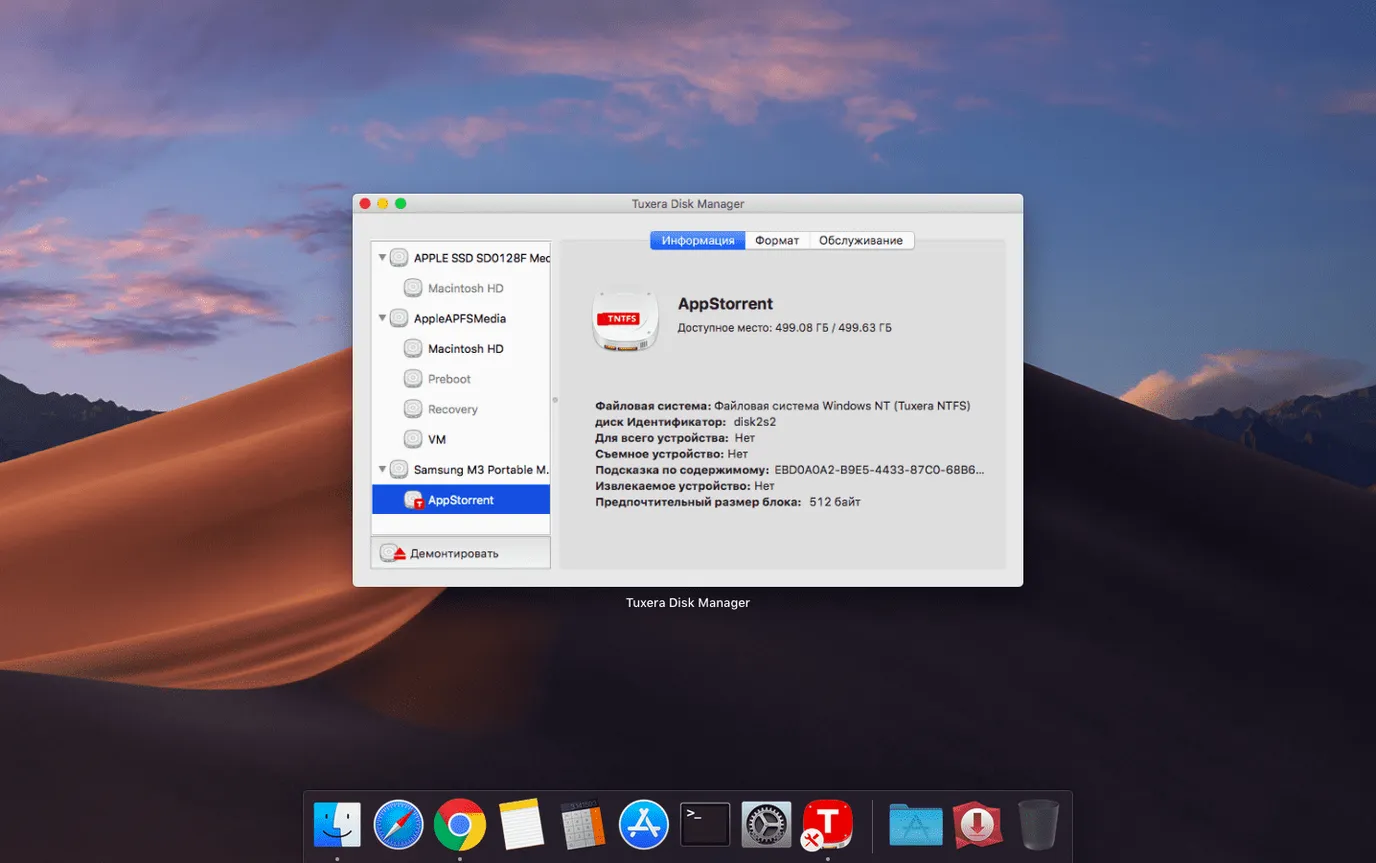
5. Run a quick repair check. Before ejecting, open Tuxera Disk Manager from System Preferences. Click Check on the volume. It scans the file system in under a minute and reports back clean. Peace of mind before the drive goes back in the bag.
6. Eject and go. Right-click, eject, unplug. The drive is ready for whatever Windows machine it meets next.
A few small habits make the first week smoother.
Maya cuts short-form video for an agency. Her home setup is an M2 MacBook Air. At the office, she docks to a Windows workstation with a calibrated monitor. Her working drive is a 2 TB Samsung T7, formatted as NTFS so the office PC reads it natively.
Tuesday morning she’s at home, pulling rushes onto the T7 from a client’s cloud folder. The drive is plugged into the MacBook. Tuxera NTFS mounted it the moment she connected it. She drags a folder of 80 ProRes clips — about 90 GB — straight onto the drive. The copy runs at full USB-C speed. No stutter, no Finder freeze.
She opens DaVinci Resolve and points it at the media on the T7. Scrubbing through the timeline is smooth. She trims a few clips, exports a rough cut, and saves the project file back onto the same drive. All on NTFS, all on macOS.
By lunch she’s at the office. The T7 plugs into the Windows workstation. The rough cut opens immediately. Timestamps on the source clips match the camera originals, so the bin sorting stays logical. No “file modified in the future” warnings.
Before heading home, she runs a quick NTFS repair via Tuxera Disk Manager on the MacBook — just a habit she picked up after a dodgy cable once caused a minor corruption. The check passes in seconds. She ejects, packs the drive, and the cycle continues tomorrow.
For Maya, the driver isn’t a utility she thinks about. It’s just the thing that makes her portable SSD work on both machines, silently, every day.
The jump to version 2023.1 was small on paper — one line in the changelog about date and time stamps — but the practical effect is larger than it sounds.
Before the fix, a file copied to an NTFS volume could end up with a timestamp a few hours off, especially across time zones or daylight saving boundaries. For anyone syncing folders between Mac and Windows, this created subtle annoyances. Backup tools flagged files as changed when they hadn’t. Sorting by modification date in File Explorer felt unreliable. For teams sharing drives, it eroded trust in the file system.
The 2023.1 update eliminated that. Stamps now match source files exactly. The change is most noticeable in workflows that rely on rsync, ChronoSync, or cloud-sync clients that watch modification dates. After updating, those tools stop seeing phantom changes on NTFS volumes. The fix also matters for photographers and videographers who sort takes by timestamp — the on-drive order now stays consistent regardless of which OS wrote the file.
Earlier versions through 2022 brought quieter improvements: better handling of NTFS volumes with large allocation unit sizes, faster directory listing for drives with tens of thousands of files, and smoother behaviour when waking a Mac from sleep with an NTFS drive still attached. None of these made headlines, but together they reduced the small frictions that used to remind you the drive was “foreign.”
The cumulative effect is a driver that fades into the background. You plug in a Windows drive and use it. That was always the promise. Recent versions, including 2023.1, have closed the gap between promise and daily reality.
It can. You can also build NTFS disk images when you need a clean, Windows-ready volume.
Yes, it supports external USB drives that were previously formatted in Windows.
Yes, it handles data exchange between Windows and macOS on a single machine.














Chat 0
Hop in or make an account to join the chat.
Quiet in here so far. If you have used this build, tell me what the install actually did.