
 Yoink
Yoink Workspaces
 Wondershare UniConverter
 Wondershare Recoverit
 Wondershare Filmora
 Wirecast Pro
 Wipr
Wipr WinZip Mac Pro


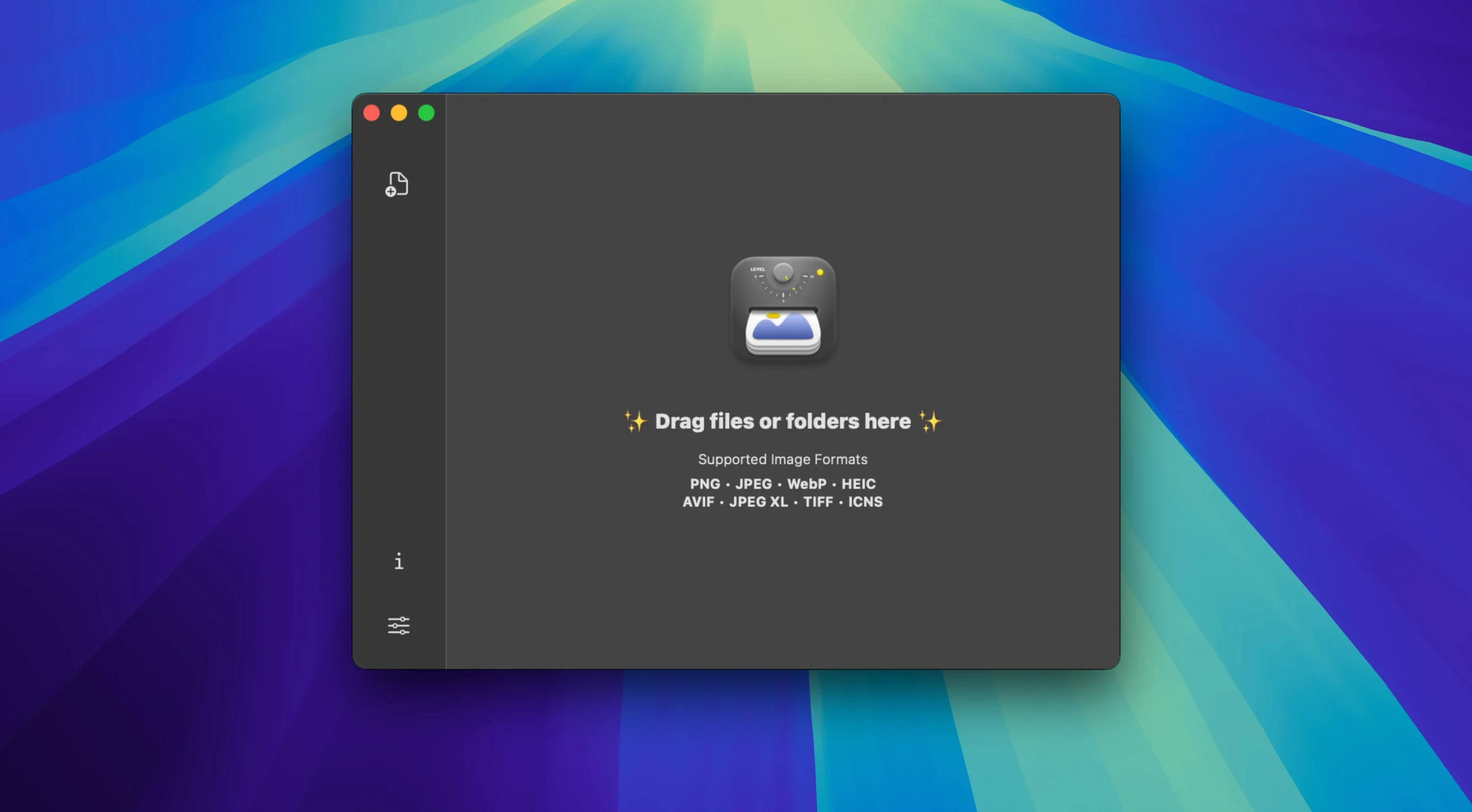
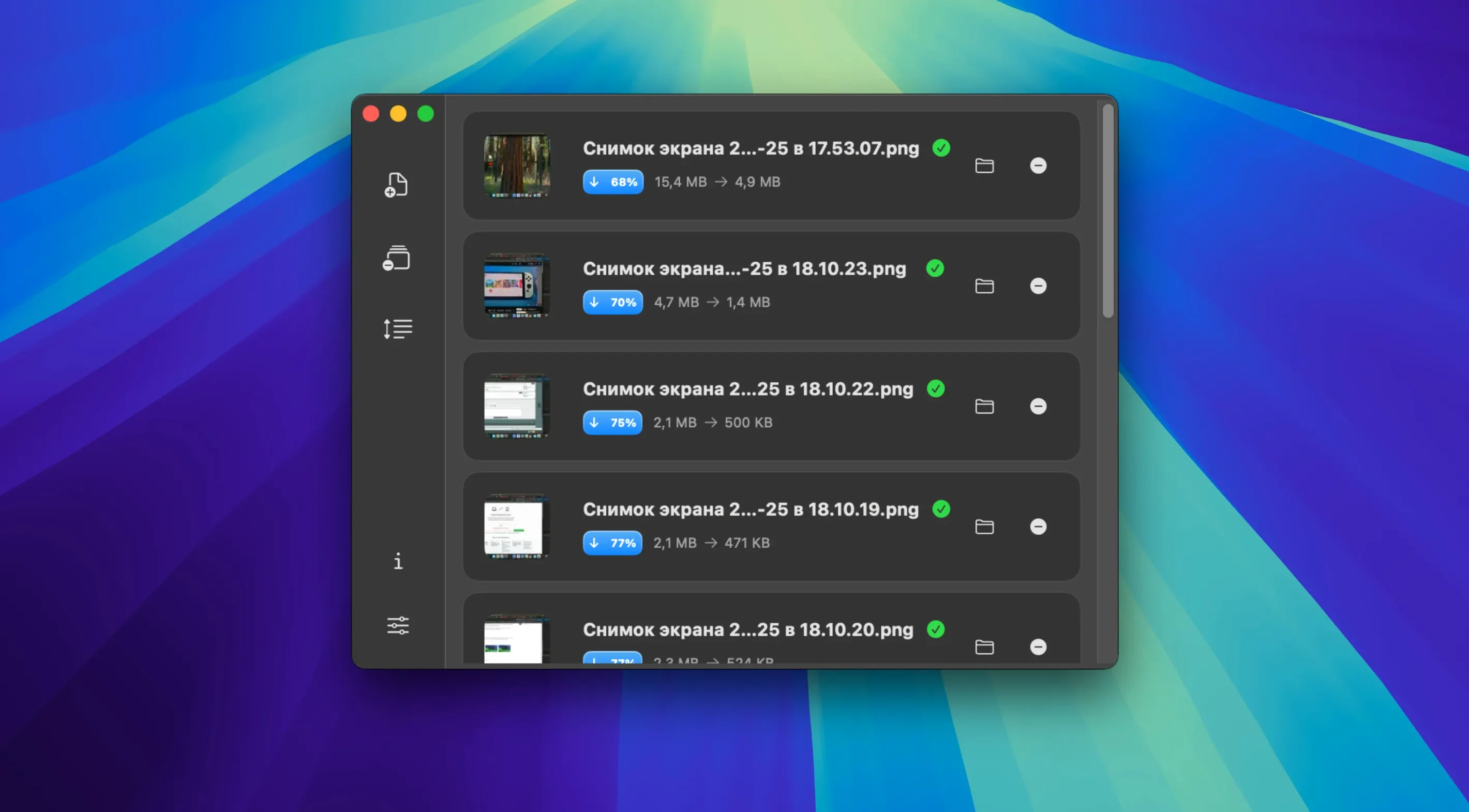
Drag a folder onto the drop zone and Zipic works through every image without asking a single question. It’s tuned for the kind of quick, repetitive compression that eats up a designer’s afternoon — export thumbnails, squash site assets, or shrink a batch of HEIC shots before sharing.
The interface stays out of the way — no wizards, no sidebars full of sliders. Just pick a folder, glance at the results, and move on.
Before version 1.10, a batch of PNG screenshots destined for a WebP folder meant an extra manual step after compression. Now the format converter lives right inside the main flow. Pick JPEG, PNG, WebP or HEIC as your output, and the app handles the switch during the same pass that shrinks the file size.
Apple Shortcuts integration arrived in the same release, which turned Zipic from a standalone tool into something you can stitch into Finder workflows. Right-click a group of images, hit a saved Quick Action, and they compress to a preset size while you stay in column view. No dock icon, no app switching. For anyone who’s built a shortcut that renames and moves files, adding a compression step now takes about thirty seconds.
Raycast support followed the same logic. Type a keyword, pick an image or folder, and Zipic processes it in the background. The result pops up as a notification instead of stealing focus.
The most common slip is dropping a folder and walking away without checking the output format setting. Zipic remembers your last choice, so a session meant for WebP exports can quietly overwrite a folder full of JPEGs if you don’t glance at the dropdown first. It only takes a second to confirm, but it’s easy to skip when you’re moving fast.
Another one: dragging a mixed folder that includes SVG files and expecting pixel dimensions to apply. SVGs scale differently, and the resize slider won’t affect them the way it does a PNG or JPEG. If you need consistent sizing, separate vectors into their own batch.
Some users also miss that the watched-folder feature runs silently. Drop a folder into the watch list, and every image saved there gets compressed automatically. Forgetting you’ve set that up can lead to compressed copies you didn’t plan for — not harmful, but confusing when you spot the smaller file sizes later.
A designer wraps up a landing page mockup export from Figma. She has seventeen PNGs in a folder, all around 2 MB each, and the dev team asked for WebP versions under 200 KB. She opens Zipic and drags the whole folder onto the drop zone. The queue lists every file in under a second.
She switches the format dropdown to WebP, sets the width to 1200 pixels, and hits start. The progress bar ticks through each image in about four seconds total. She glances at the before-and-after sizes: the largest PNG went from 2.1 MB to 94 KB. No visible banding in the gradients, no crunchy edges around the text overlays.
She copies the compressed folder to the shared drive and keeps Zipic open. Later that afternoon, someone drops a Zipic torrent macOS search into Slack, curious if the app is lightweight enough for an older MacBook Air. She drags a test batch of forty RAW-converted JPEGs onto the app while Screen Sharing is still running. The fan doesn’t spin up. The queue clears in under ten seconds.














Chat 0
Hop in or make an account to join the chat.
Quiet in here so far. If you have used this build, tell me what the install actually did.