
Download MiniMeters for macOS
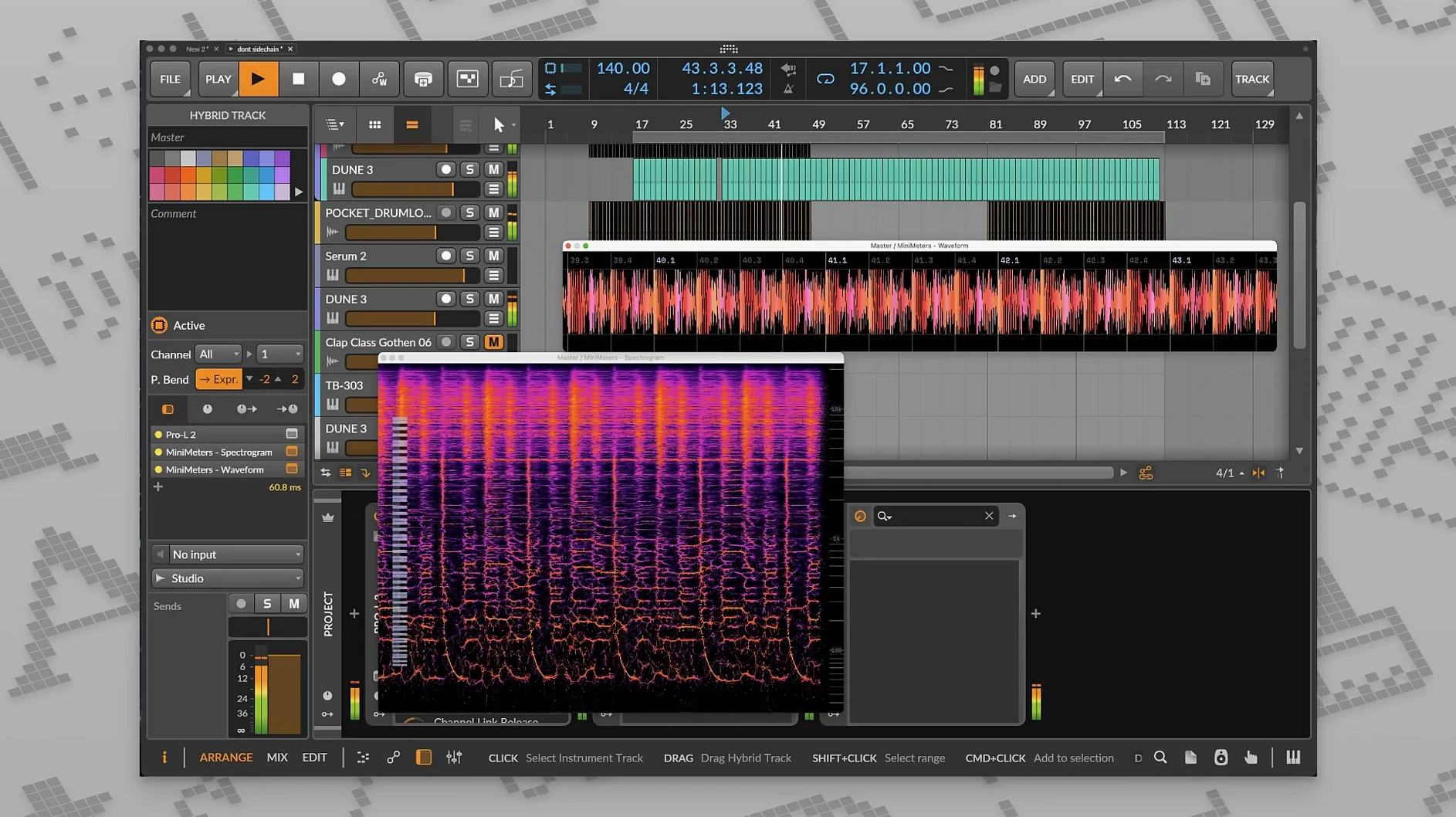
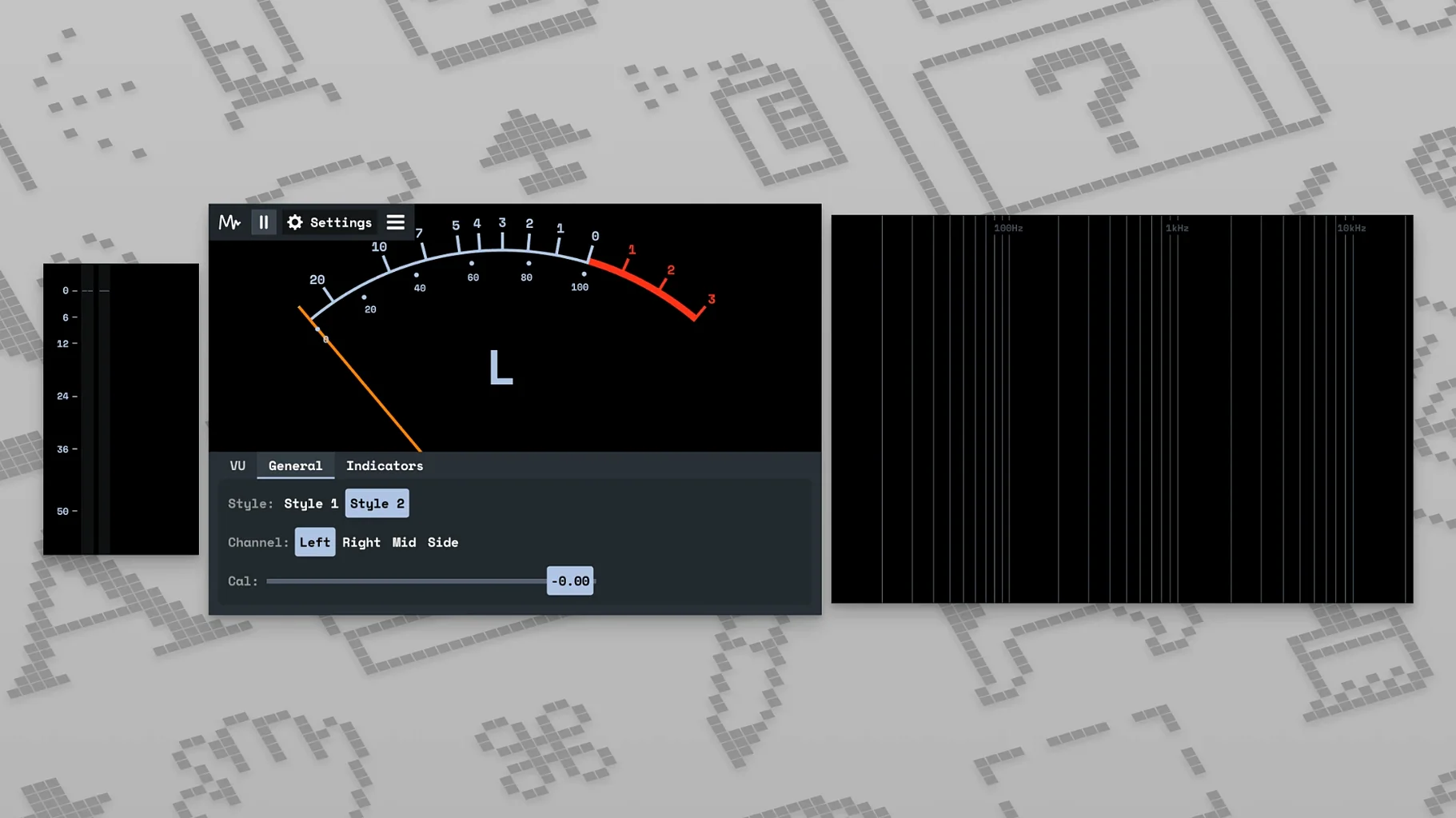
MiniMeters runs on any Mac with macOS 10.15 or newer, whether it has an Intel processor or Apple Silicon. It loads as a plug-in inside your DAW and also works as a standalone app that can monitor your system audio directly.
At heart it is a set of visual meters designed for mixing, mastering, and checking your track against reference material. The interface is compact but customisable: you choose which tools are visible, adjust the colour scheme, and arrange the panels to suit how you work.
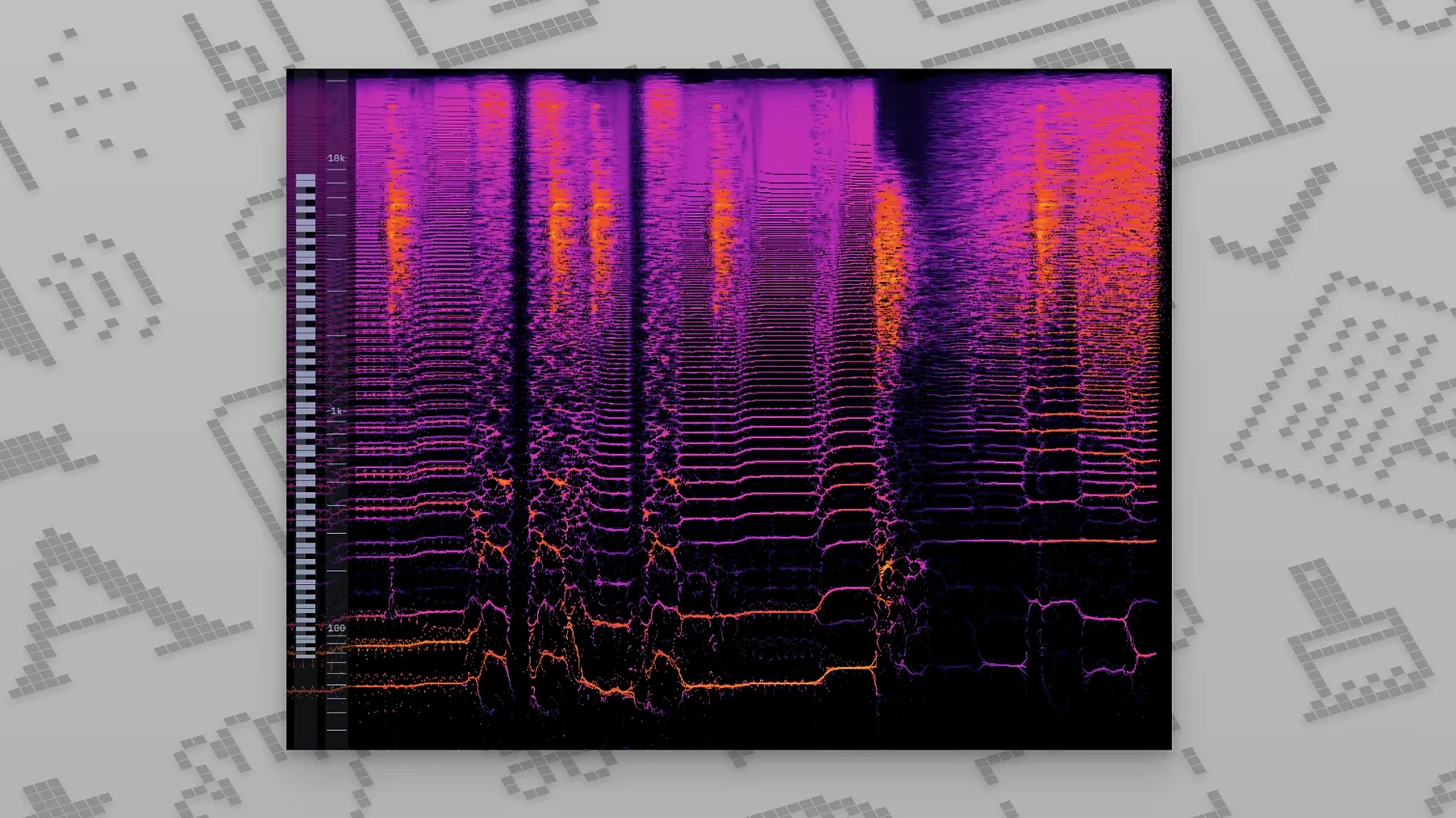
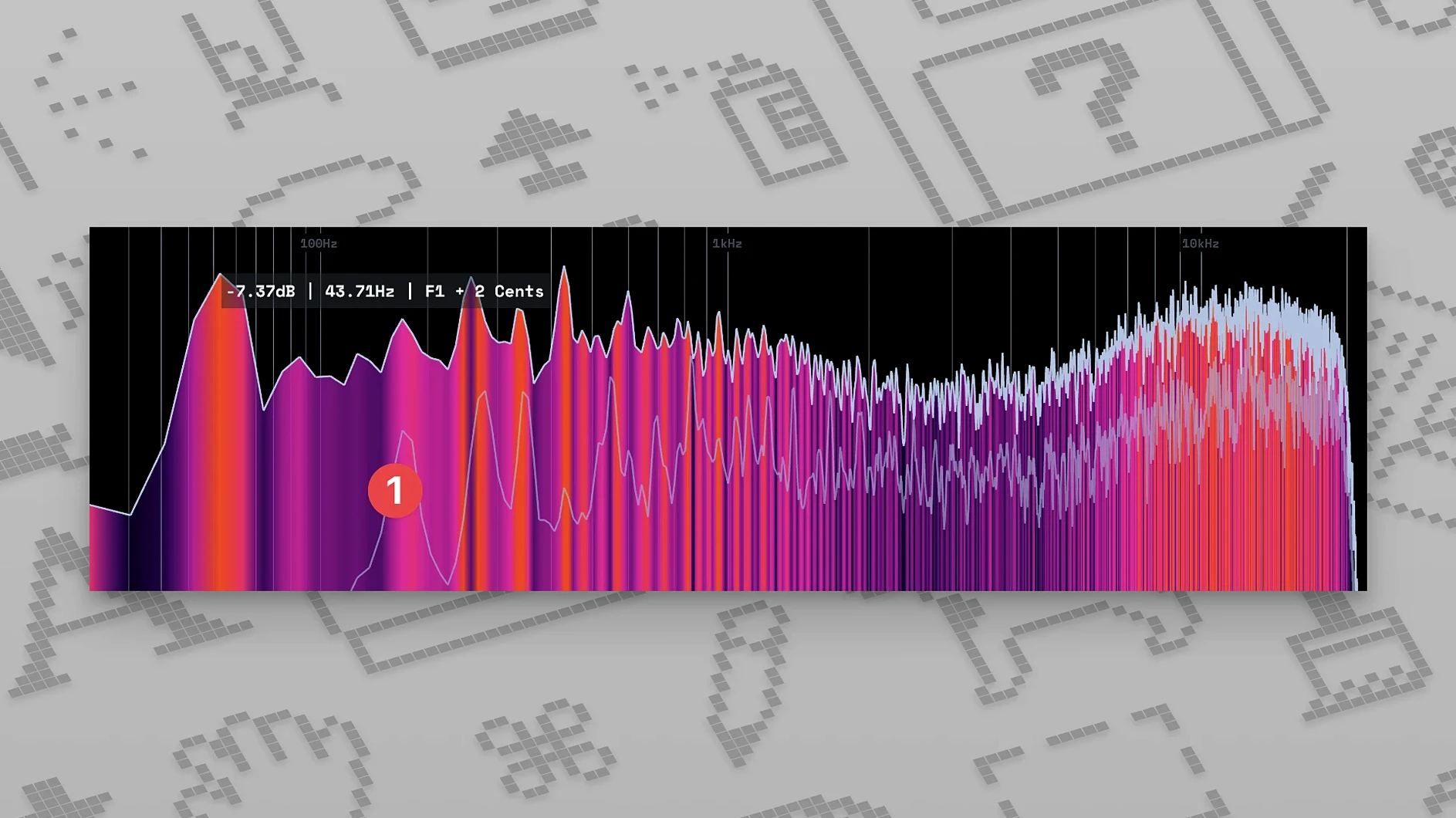
The v0.8.0 release brought an updated spectrogram, and the current version tidies long-standing bugs and small interface quirks. Everything updates in real time, so you can watch frequency content, stereo spread, and dynamics as you tweak a compressor or EQ.
Because it can sit on your system output, MiniMeters is just as handy for visually checking a reference track outside your session as it is for keeping an eye on your own mix.
Chasing the LUFS number
Every producer I know opened MiniMeters for the first time and stared at the LUFS readout like it was a scoreboard. That is not how loudness metering works.
The most common slip is chasing a target number instead of using your ears. Beginners often push a mix until the integrated LUFS hits –14 and call it done, without realising the reading was dragged down by a quiet intro. Short-term LUFS and the waveform display together tell you more than any single figure.
Another mistake is ignoring the MiniMetersServer routing. People launch the plug-in, see no movement on the meters, and assume the software is broken. The server sits between your DAW and the display — skip that step and nothing reaches the interface. On a Mac the connection is local and near-instant once set up, but you do need to select it as the output in your session.
Overloading the layout is a quieter trap. The app lets you stack every panel at once: spectrogram, waveform, stereo meter, loudness, peak. New users sometimes enable all of them on a laptop screen and end up squinting at tiny readouts. Pick two or three modules and give them space. You will actually read the data that way.
A subtler one: trusting the spectrum display without checking the FFT settings. The default resolution works for broad tonal balance, but a beginner looking at a narrow resonance might miss it entirely if the block size is too wide. Adjust the resolution to match what you are hunting — broad strokes or surgical detail.
Idle CPU on an M1 Air
On an M1 MacBook Air the standalone app opens in under a second and sits at around 2–4% CPU during playback. The plug-in adds almost nothing measurable inside a DAW session that already has a dozen tracks running. Intel Macs from the 2019 era handle it similarly, though the spectrogram scrolling can add a small bump when the window is large and set to a high refresh rate.
Memory use stays modest. After a two-hour mixing session I have seen it hovering around 80–120 MB, which is light enough to leave running even when you are not actively looking at it. No gradual creep upward, no swapping on machines with 8 GB of RAM.
Stability under load is solid. Dragging the server connection while audio is playing causes a brief flicker — the meters drop for a fraction of a second and recover without crashing the host. I have thrown sudden sample-rate changes at it, unplugged audio interfaces mid-session, and switched output devices rapidly. The display stutters momentarily and then catches up. No kernel panics, no frozen plugins, no need to restart the DAW.
Visually the drawing is smooth above 30 fps on Apple Silicon and stays responsive when you resize panels on the fly. The only hiccup I can reproduce reliably is on older Intel graphics where the spectrogram set to full height and a fast refresh can dip below 20 fps. Dialling the refresh down one notch fixes it completely.
Reference track outside the DAW
I start by opening the standalone app and dropping a reference track onto the system output. MiniMeters grabs the audio straight from the Mac's output bus — no DAW needed. I set the layout to show integrated LUFS, the stereo meter, and the spectrum display. Three panels, no clutter.
The reference plays through once while I watch the loudness curve settle and note where the short-term LUFS sits during the chorus. I glance at the stereo meter to see how wide the sides are spread, then let the spectrum display paint a picture of the overall tonal balance. I am not mixing yet — just calibrating my ears against a visual snapshot.
Next I close the standalone window and open my DAW session. The MiniMetersServer is already running in the background — it starts automatically if you launched the app first. I drop the MiniMeters plug-in onto the master bus as the final insert, post-limiter. Signal flows from the DAW through the server to the meter window, which I drag onto a second display.
Now the real work begins. I solo the drum bus and watch the waveform display for transient shape while adjusting the attack on the bus compressor. The waveform is fast enough that I can see the difference a two-millisecond change makes. Then I bring in the bass and watch the spectrum for masking — the low-end overlap shows up as a buildup around 80–120 Hz, and I carve a small EQ dip in one track while watching the graph respond.
Throughout the mix I keep the loudness panel visible in the corner of my eye. Short-term LUFS during the loudest section guides my final limiter threshold, not as a rule but as a sanity check. When the numbers look right and the track sounds right, I know I am close.
Finally I play the whole mix through the standalone app one more time, this time with the system audio feed, catching any last balance issues from outside the DAW environment. It is a clean way to step back and see the track the way a listener would — no session metering bias, just the raw output and a handful of honest meters.
- Fixed long-standing bugs and small UI issues.
- macOS 10.15 or newer
- Intel or Apple Silicon Mac
Questions I get
Yes, the standalone app lets you monitor any system audio, which is useful for comparing reference tracks without opening a session.


Chat 0
Hop in or make an account to join the chat.
Quiet in here so far. If you have used this build, tell me what the install actually did.