
 File List Export
 Final Cut Pro
 Fig Player - play mp4 mkv mp3
 Fender Studio Pro
 Find Any File
 FL Studio
 Folder Preview Pro


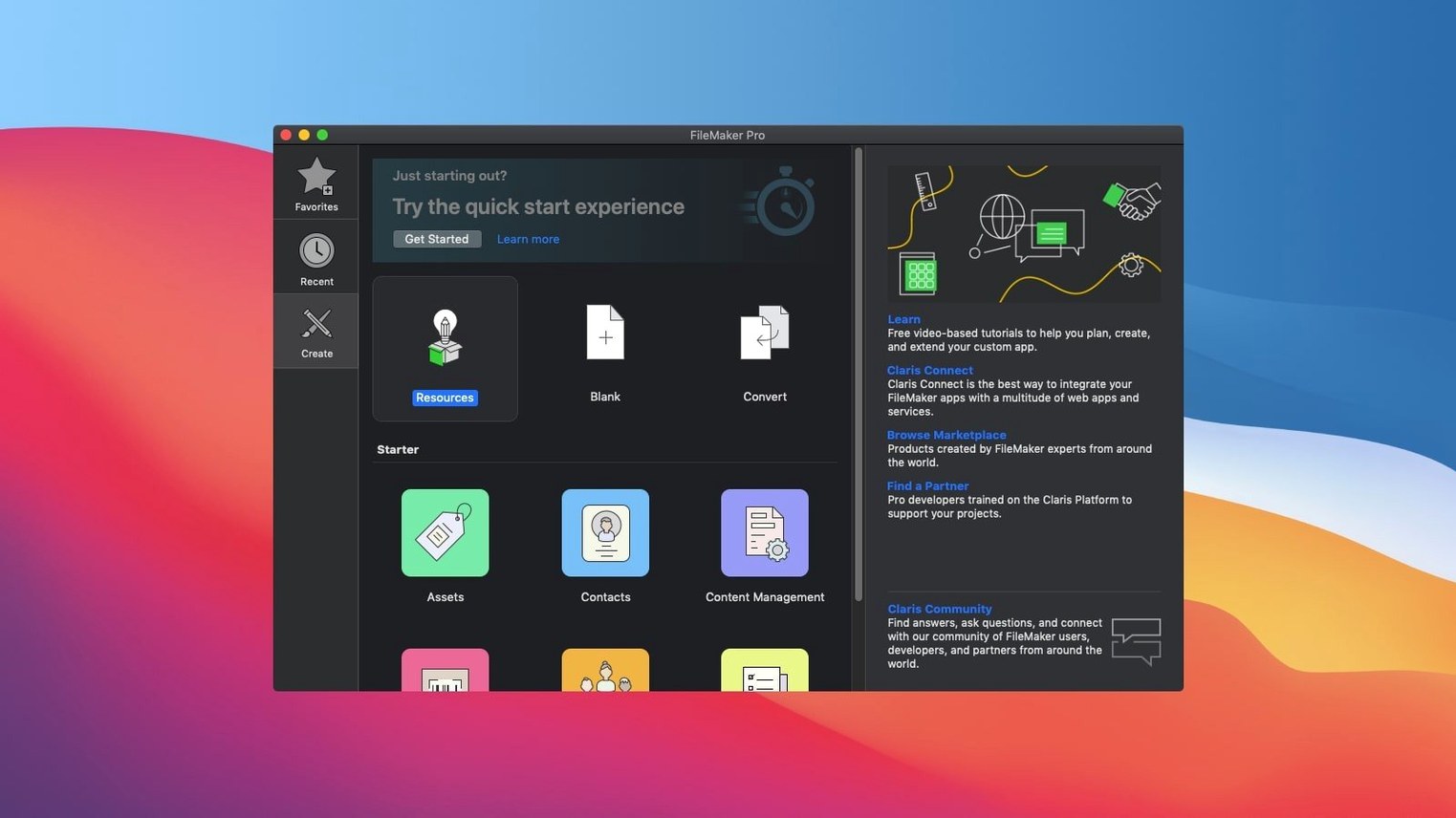
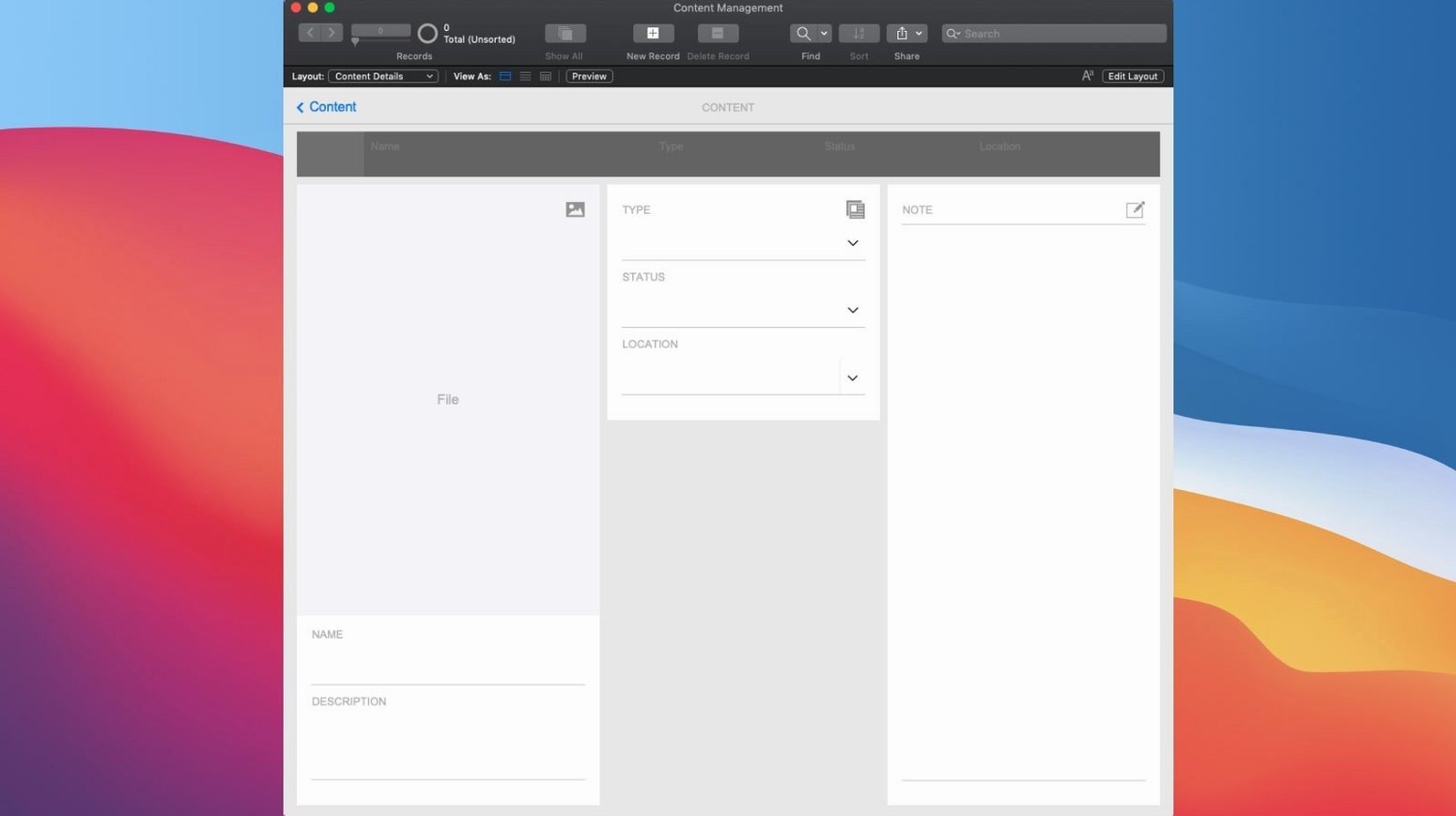
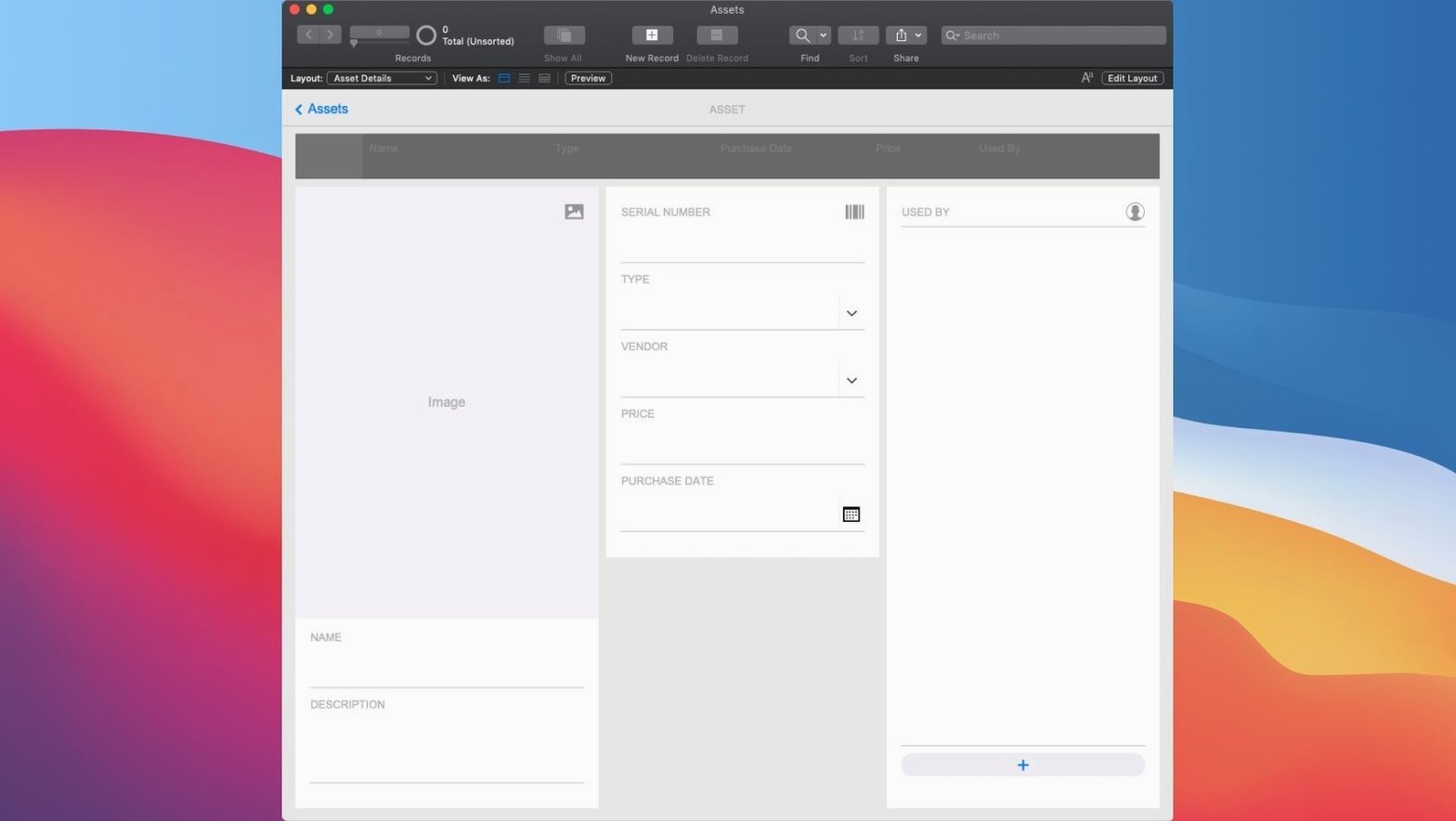
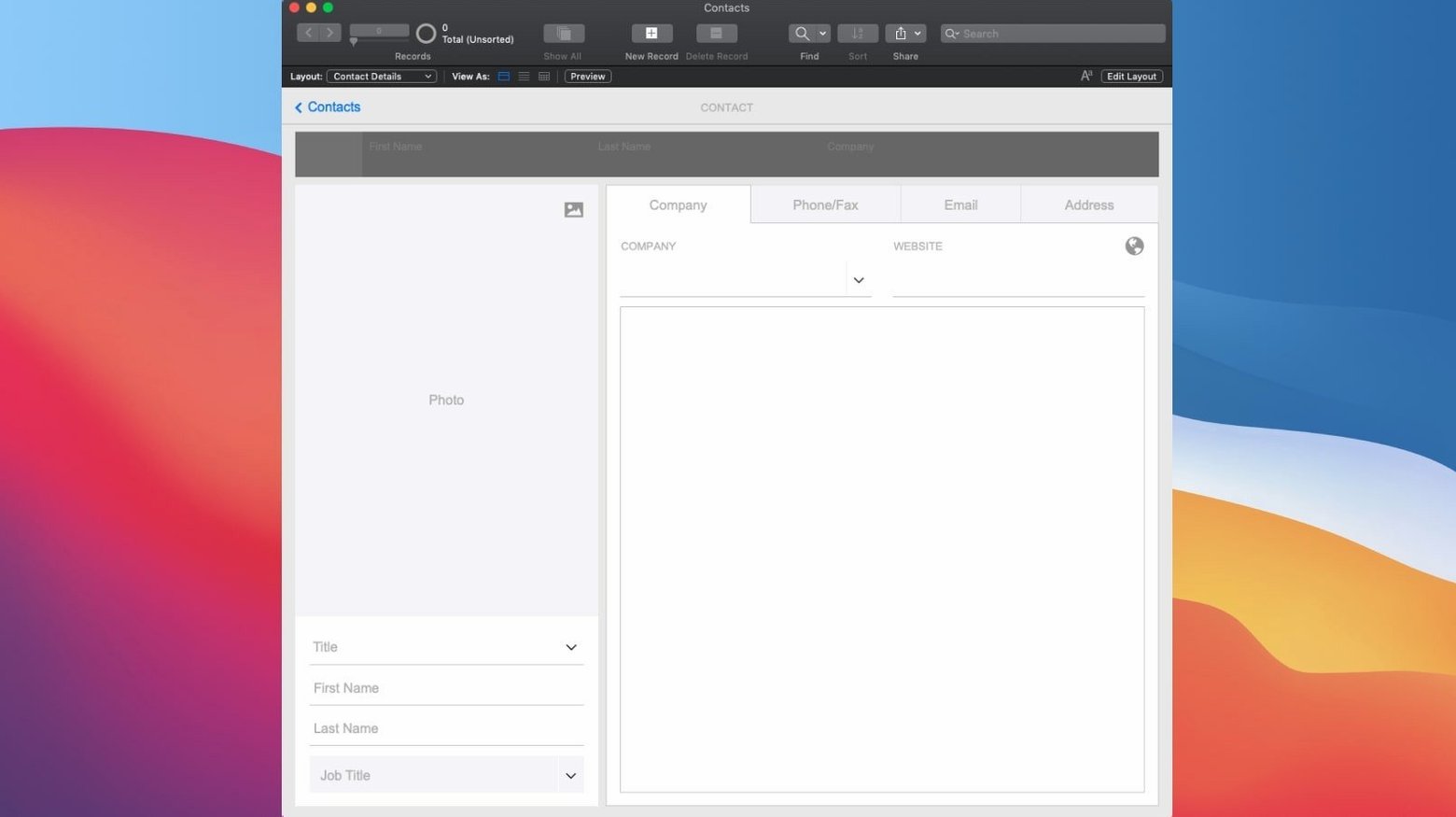
If you’ve ever nudged a Numbers spreadsheet past its breaking point—adding too many cross-references, wishing a cell could trigger a real action—FileMaker Pro is the logical next tool. It’s a low-code environment where you drag and drop to build custom apps for CRM, project tracking, asset libraries, and more. The 2024 release (version 21.0.1) folds in some clever AI smarts, but the real joy is how quickly a blank file turns into something useful. Here’s where to start.
These five moves get you past the blank-screen moment. Once you’ve shaped a layout and connected a device, the rest of the feature set starts to make sense on its own.
Fresh out of the box, a few preferences deserve an immediate nudge. Open Preferences from the FileMaker Pro menu, then flip these:
FileMaker is full of tucked-away shortcuts that feel like secrets once you stumble on them. A few worth learning in your first week:
Cmd-F in Browse mode. Type a word or number, press Return. It scans every field on the current layout. No script, no relationship needed.Cmd-D clones the current record. Brilliant for data entry where most fields repeat and only one or two change.None of these are flashy, but they cut the quiet friction that builds up over an afternoon of layout work.
Imagine you need a lightweight app to track editorial assignments. Here’s how a first session might flow.
You open the Project Management starter template from the launch window. The dashboard already shows tasks in a Kanban board, but the columns don’t match your workflow. In Layout mode, you rename the status labels—Draft, Review, Scheduled, Published. A few Option-drags copy the card fields you need.
Back in Browse mode, you add three real assignments. The Kanban cards shift as you drag them between columns. You realise the cards look cramped, so you hop back into Layout mode, widen the card shape, and pull the due-date field up next to the assignee. It takes under a minute.
You want a quick view of everything due next week. You type “next week” into the search bar and Perform Semantic Find surfaces records you’d normally need a date range to catch. One assignment is mis-tagged; you fix it and keep moving.
Before lunch, you open the file on an iPad. The same Kanban board appears, live. You drag a card into Review while someone else watches it update on the Mac back at your desk. The session ends with a saved layout, three records, and a template that now actually fits the team’s rhythm.
FileMaker sessions tend to feel like that—small bursts of building, then testing, then a quiet moment where the thing you shaped just works.
You can build custom apps for things like client tracking, project management, content libraries, and asset management, all shared in real time across Macs, iOS devices, and the web.














Chat 0
Hop in or make an account to join the chat.
Quiet in here so far. If you have used this build, tell me what the install actually did.