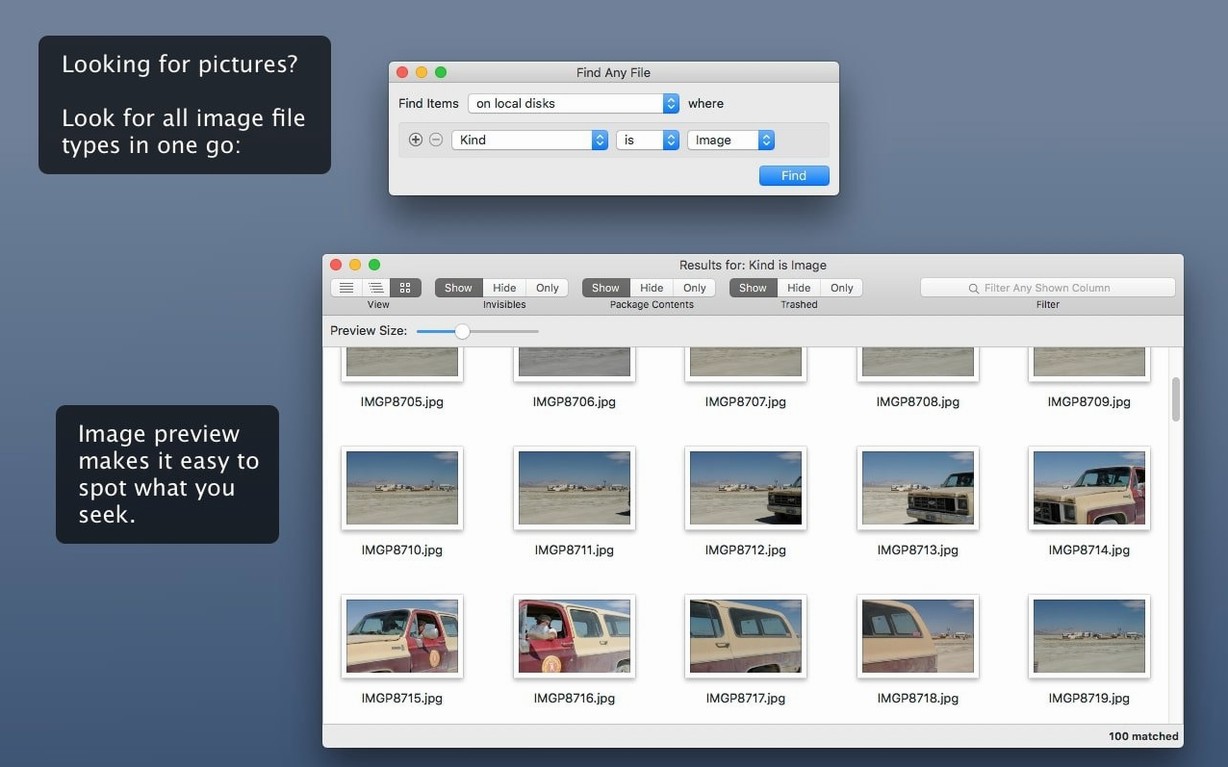
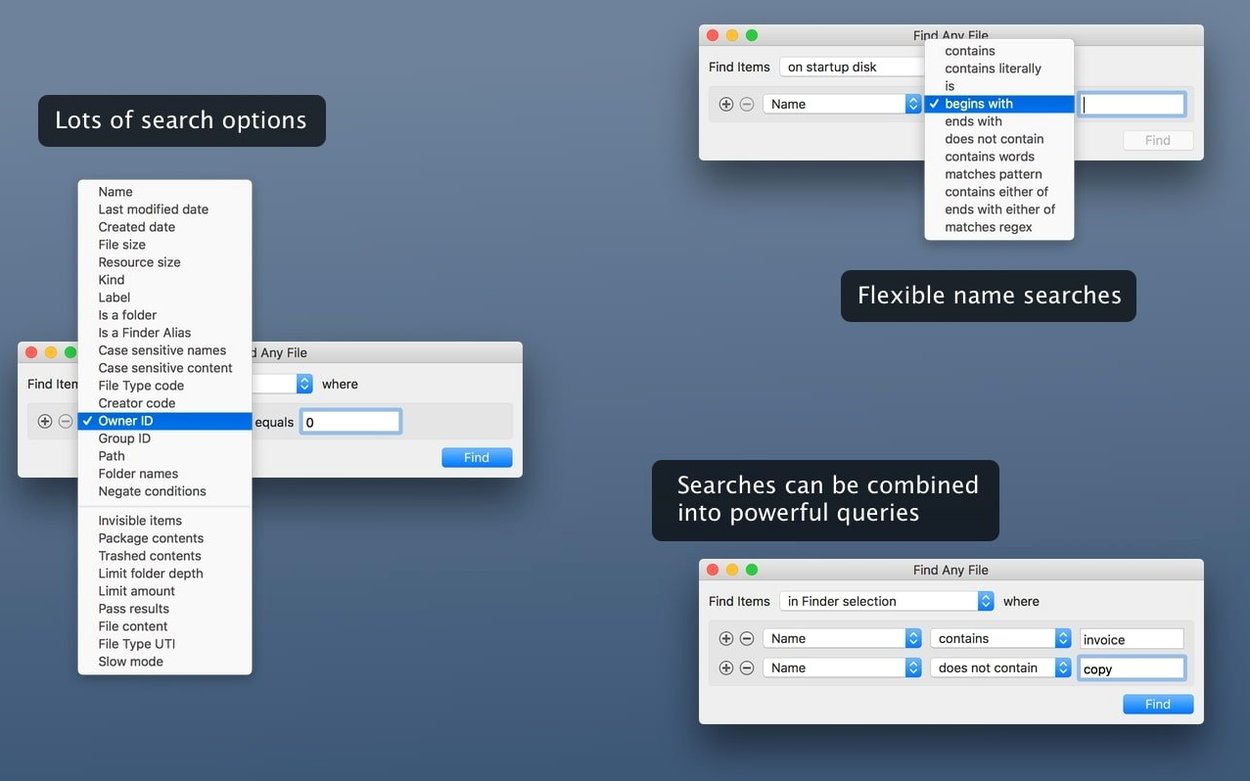
Find Any File is a Mac search tool that reads your disks directly instead of consulting a database, so it looks in places Spotlight won't touch — system folders, bundles, and packages.
Search places Spotlight skips
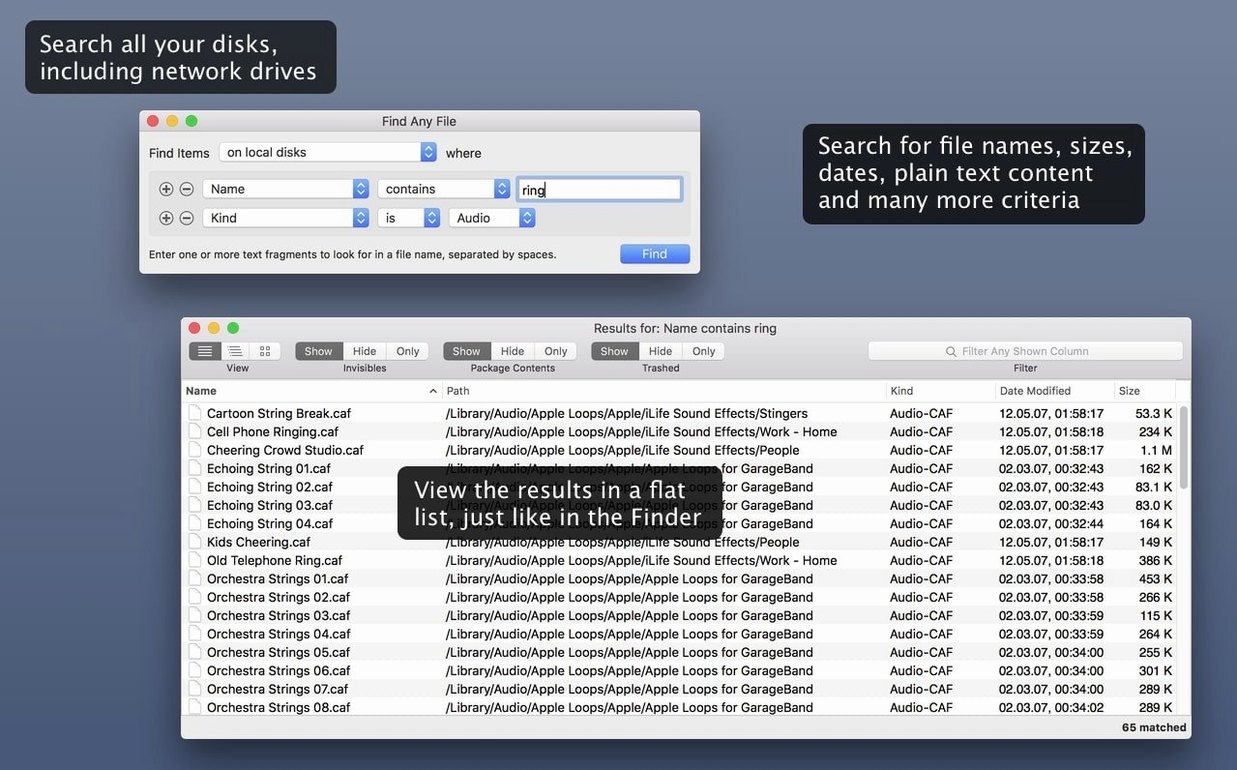
Spotlight works well for email, Word docs, and PDFs, but it doesn't comb through every last folder on your drive. That's where Find Any File steps in. It hunts files by name, date, size, or the plain text inside them — the kind of text you'd see in TextEdit, not formatted documents. Think of it as the torch you grab when you know a file exists somewhere, but the usual search isn't showing it.
How it finds things
Rather than relying on an index, the app reads the directory structure live. That makes it thorough for exact matches, recent items, or files buried inside packages. It doesn't search rich-text formats, so it won't replace your everyday lookup tool, but it's the logical next step when that tool falls short.
A typical search session
You've just wrapped a logo project for a café client. The final files are on the server, but the working sketches you scribbled last Tuesday? Gone from sight. Spotlight drew a blank, so you launch Find Any File.
- Pick the disk. You select the "Work" external drive from the sidebar — not indexed by Spotlight, but no problem here.
- Name your target. In the search field, you type
cafe and set the kind to "Name contains". You could narrow it by extension, but a broad sweep feels right.
- Add a date rule. Under the "Date" tab, you pick "Last modified" → "within last 7 days". Two conditions, no clutter.
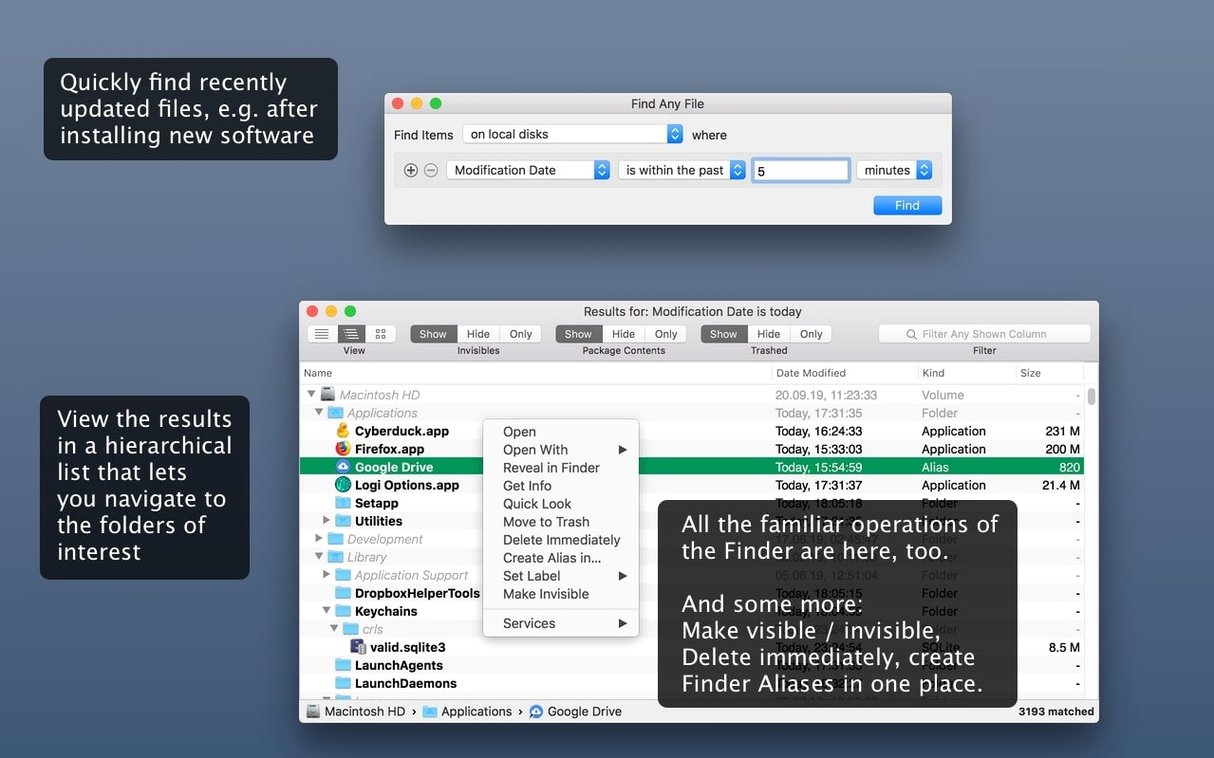
- Run it. You press Return. The app reads the directory tree live. Within seconds, a hierarchical list appears — folders on the left, matching files alongside them. The missing sketch,
cafe-mural-rough.psd, sits inside a buried "Experiments" folder you forgot you made.
You right-click the result, choose "Reveal in Finder", and there it is. Whole process took under twenty seconds.
Set a default search folder early
Give yourself a quiet afternoon to get comfortable. The app respects old Mac habits, but a few early moves save time later.
- Set a default search location. If you rarely search the whole system, open Preferences and pick your home folder or a work drive. Less visual noise when you're in a hurry.
- Test it on a known file. Pick something Spotlight finds instantly, then search for it by name here. Watch how results differ — you'll spot system items and package contents that never surface otherwise.
- Make friends with the hierarchical view. That left-hand folder column isn't decoration. When you search a broad location, it groups results by parent folder, which often jogs your memory faster than a flat list.
- Try a plain-text content search. Create a simple .txt file, write a nonsense word inside it, then hunt that word with "Text content contains". This teaches you what the app reads and what it skips. You'll quickly learn it won't dig through pages documents or rich email attachments.
Drag any folder into the search field
A few details sit just below the surface, easy to miss on a first run.
- Drag-and-drop location. You can pull any folder from Finder straight into the "Search in" field. No clicking through the sidebar, no open dialogs.
- Invisible files toggle. Hold the Option key while opening the "Find" menu, and you'll spot a command to include invisible items. Handy when hunting stray config files.
- Column sorting on the fly. Click any column header — Name, Size, Kind — to reorder results. Click again to reverse. The app remembers your sort, even across new searches.
- Copy the path, not just the name. Right-click any result, hold Option, and "Copy Path" appears. Paste it straight into Terminal or a colleague's chat message.
- Quick filter with the search bar. Already have a long list on screen? The small filter field at the top of the results window narrows what's shown without re-running the disk scan. Instant triage.

 Final Cut Pro
 FL Studio
 FileMaker Pro
 Folder Preview Pro
 File List Export
 Folder Tidy
 Fig Player - play mp4 mkv mp3
















Chat 0
Hop in or make an account to join the chat.
Quiet in here so far. If you have used this build, tell me what the install actually did.