
 Mole
Mole Moho Pro
 Motion
 Mitti
Mitti Mission Control Plus


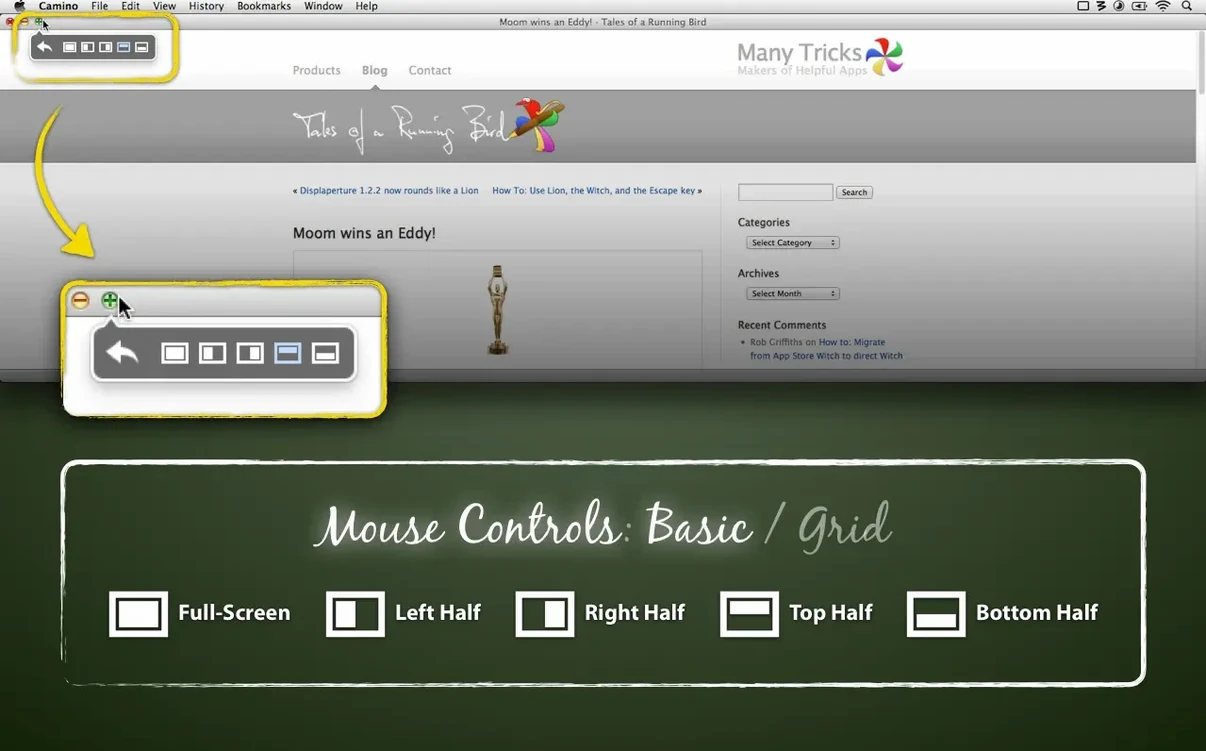
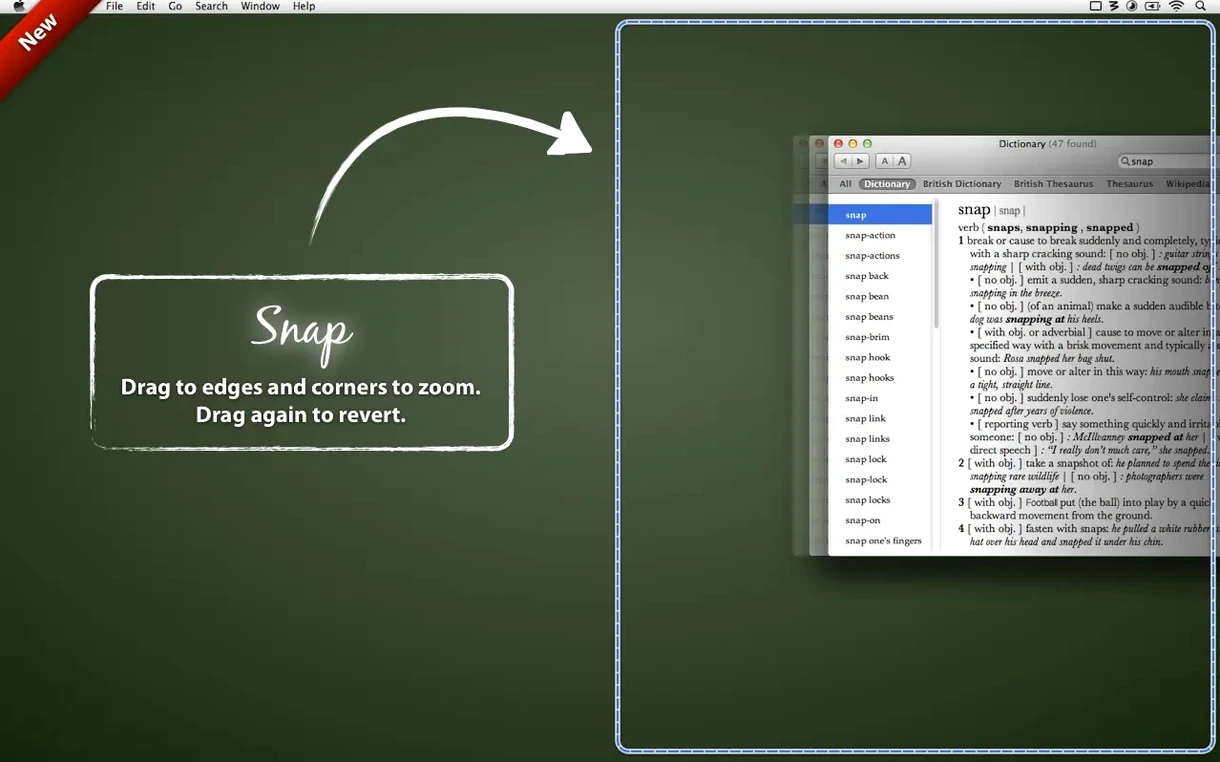
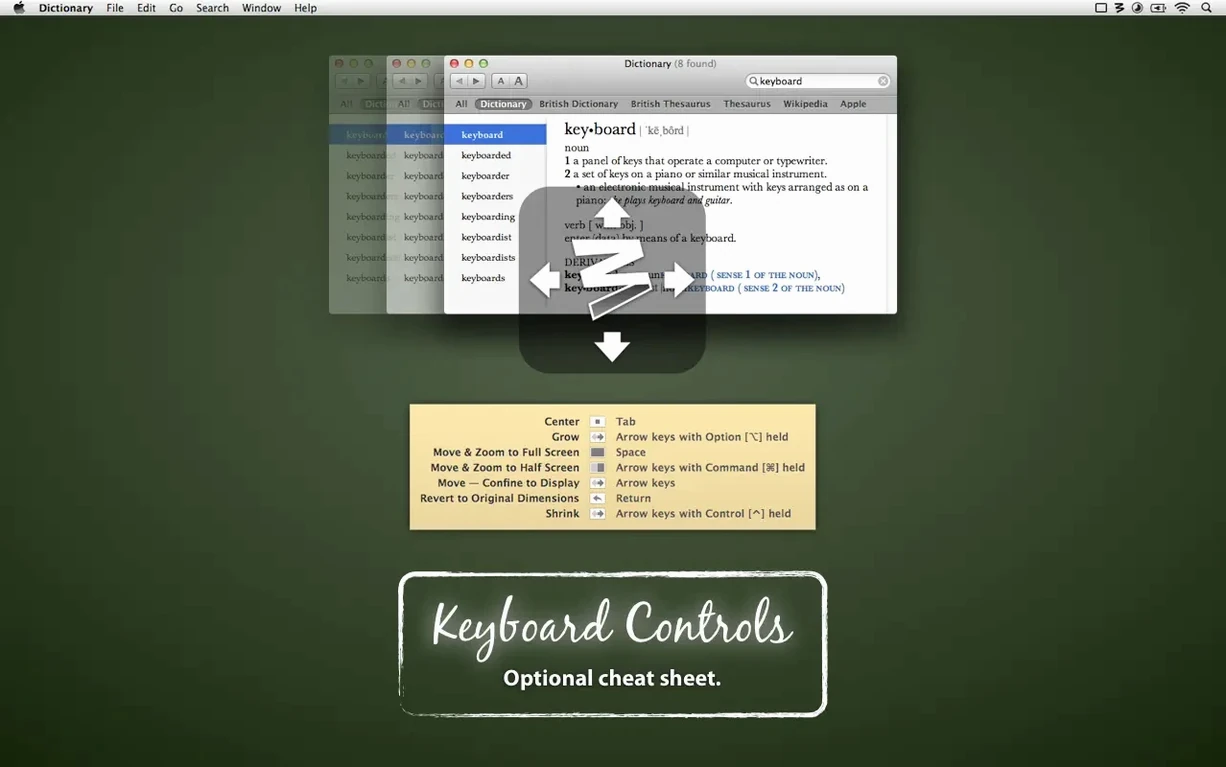
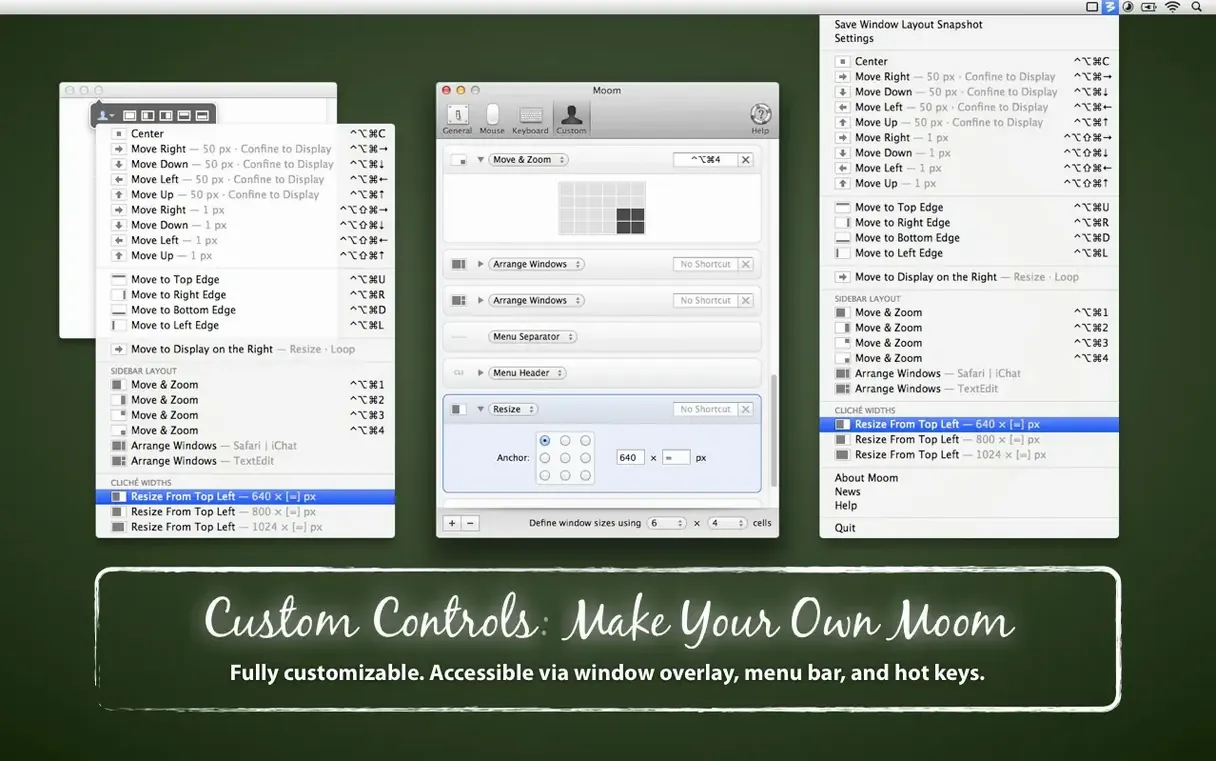
Moom ships with more than 50 ways to move and resize a window. That range can feel like a lot on day one, so here is a shorter on-ramp: three moves worth trying first, plus a few habits that make the app click.
You do not need to memorise every feature. Pick one trigger and use it until it feels automatic, then add another. The green hover palette is the easiest starting point — hover over any window's green traffic-light button and a pop-up menu appears with half-screen, full-screen and custom actions. Pick one, click it, done.
Next, try the keyboard shortcut for left half or right half. Open System Preferences after installing, assign a combo you can hit without thinking, and practise it every time you open a Finder window. Muscle memory builds faster than you expect.
On day three, drag a window to the top of the screen and watch the grid overlay appear. Drop the window onto any cell and it resizes to fit. That grid is resizable — so if you prefer three columns instead of two, you can set that once and it sticks. If you grabbed the moom mac full version from the developer's site, all these triggers are already enabled; just open the app preferences and confirm the shortcuts you want to keep.
Does Moom clash with macOS window snapping?
No — it extends what the system already does. If you are used to dragging windows to screen edges in Sequoia, Moom layers its own grid and drop zones on top. You can keep both active, or turn off the built-in macOS snapping if you prefer Moom's version. The app does not overwrite system behaviour unless you tell it to.
Will it slow down an older Mac?
It runs as a lightweight background agent on macOS 10.13 High Sierra and later, Intel or Apple Silicon. Most people forget it is there until they use a shortcut. If you are searching for a clean moom download, the installer is a simple disk image — drag the app into Applications and launch it from Launchpad.
Can I move windows between displays with it?
Yes. Keyboard shortcuts and saved layouts both support multi-display setups. You can snap a window to the left half of your secondary display with one shortcut, or tell a layout to position specific apps on specific screens.
Here is a real scenario. You are writing a report with Safari open for research, Notes for quick thoughts, and Pages for the draft. Start by opening all three apps. Arrange them how you want them — Safari taking the left two-thirds of the screen, Pages top-right, Notes bottom-right. Then open Moom's main panel, click the layouts tab, and save that arrangement as a named layout.
Assign the layout a keyboard shortcut, or set it to auto-apply when those three apps are the frontmost windows. The next time you sit down to write, trigger the layout and all three windows snap into place — even if they were scattered across different displays. If you downloaded moom for mac specifically for multi-app workflows, this is the feature that pays off fastest. Combine it with the proximity-based assignment introduced in version 4.6 and the layout even adapts when you have a different set of windows open, matching the closest ones to the saved spots.
Good to know: layouts can be set to apply only to windows on the active display, so you can keep a Slack window parked on a second screen without disturbing it.














Chat 0
Hop in or make an account to join the chat.
Quiet in here so far. If you have used this build, tell me what the install actually did.