
 VideoByte BD-DVD Ripper
 VideoProc Converter AI
 VideoProc Converter
 Vivid
Vivid ViWizard Spotify Music Converter
 VMware Fusion Pro
 Typinator
 Typeface


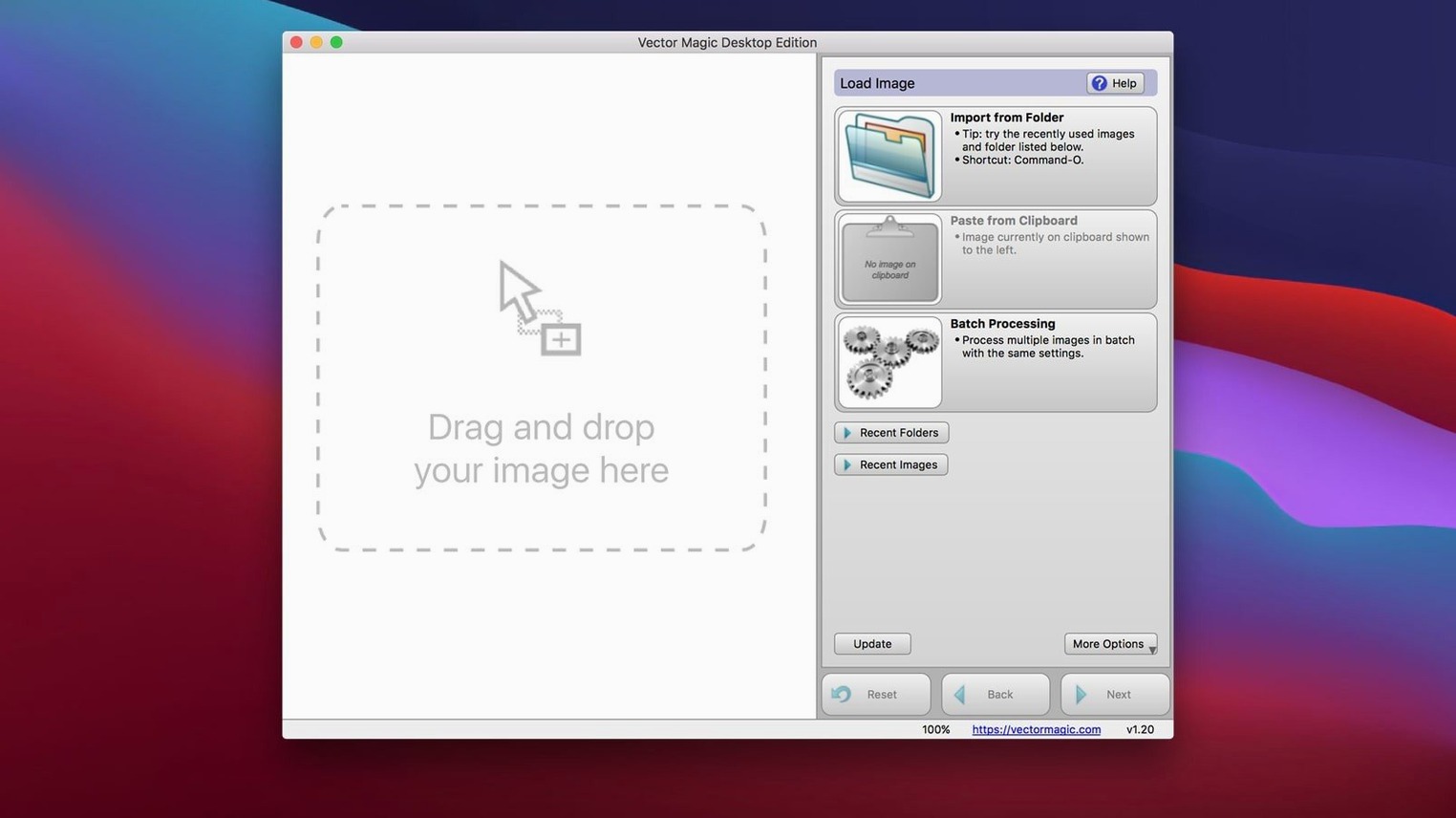
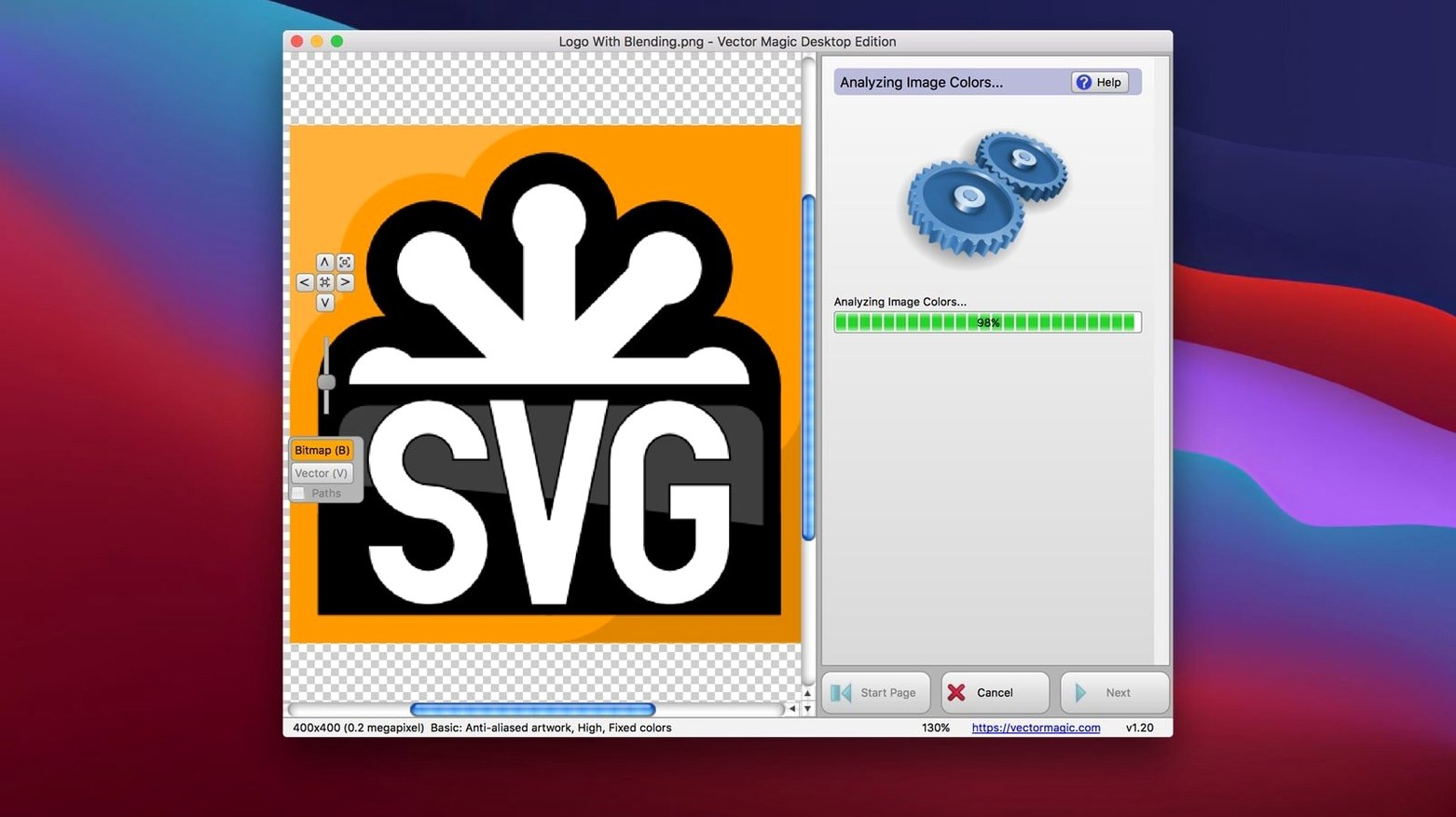
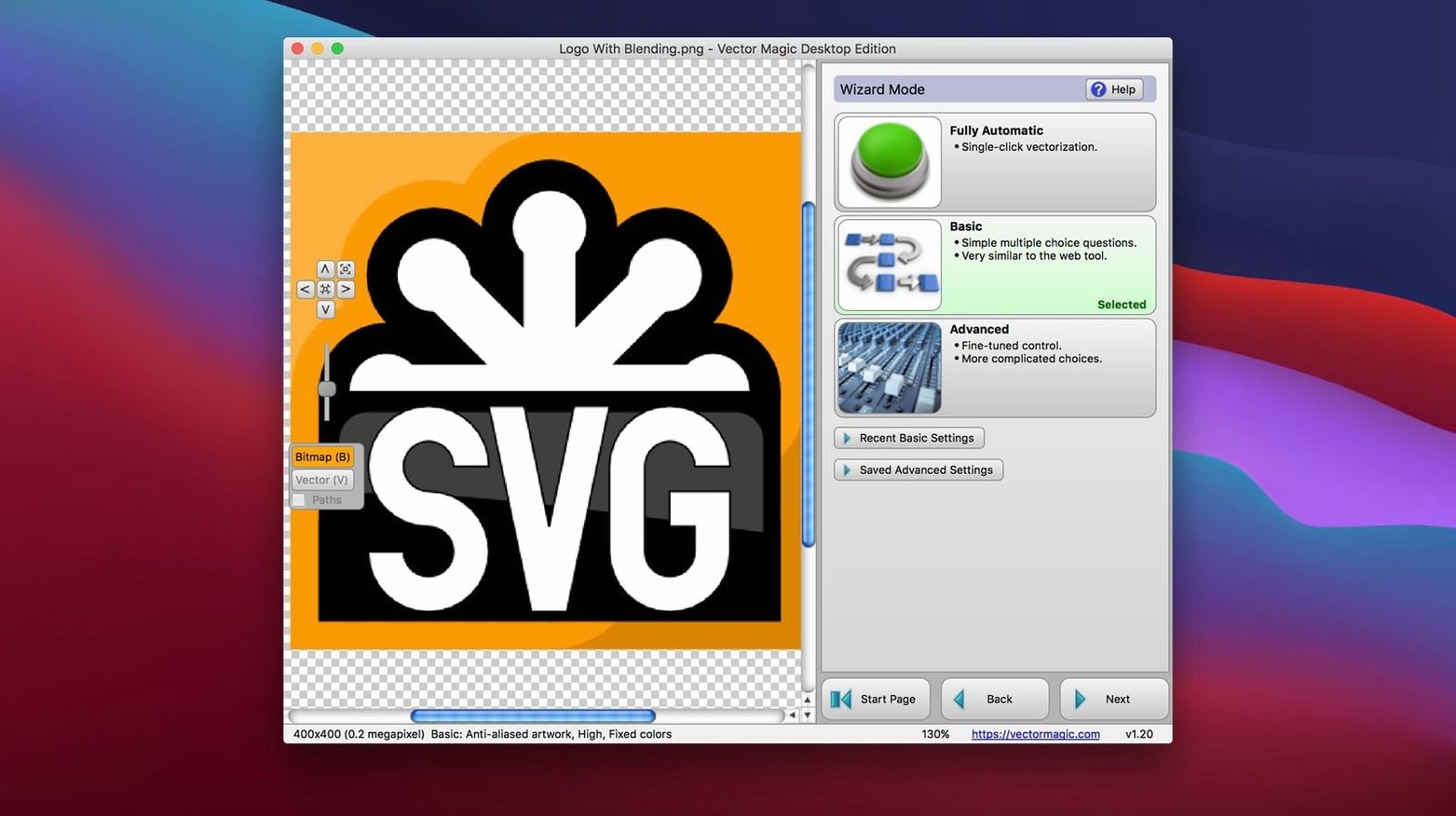
The desktop edition handles raster files up to 10 megapixels and 10 MB apiece. Drag a JPEG, GIF, PNG, BMP, TIFF or PSD straight into the window and it starts tracing without fuss.
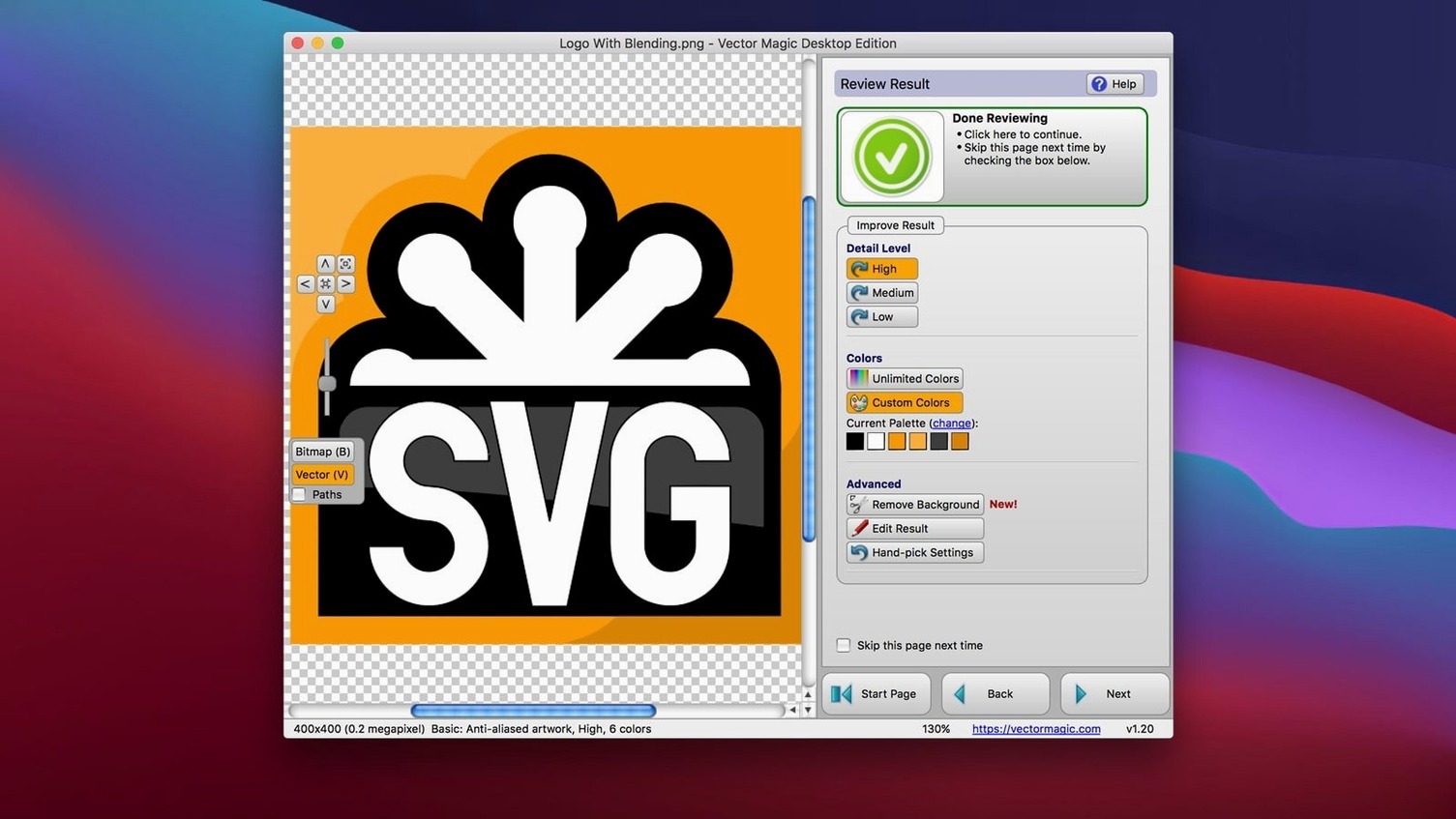
Most auto-tracers leave you with a mess of stray nodes. Vector Magic gives you editing tools that work during the conversion, not after. Strip out a photo background before the trace runs, then tweak colour segments with the segment editor so flat areas stay genuinely flat. The result is a lean SVG or PDF that an illustrator would be happy to tidy, not one they'd need to rebuild.
One-at-a-time tracing wastes an afternoon. Drop a folder of icons, logos or scanned sketches and let the desktop edition process the lot. Large images up to the 10-megapixel ceiling trace reliably, and the drag-and-drop queue means you set it up and walk away. Good for production designers who need consistent output across dozens of assets from the same source style.
Say you've got a pencil logo sketch scanned at 600 dpi as a greyscale PNG. It's a bit smudged around the lettering and the paper shows through. Here's one way to take it from scan to finished vector without leaving Vector Magic.
The whole thing takes under four minutes once you've done it twice. For similar jobs — scanned stamps, inked type, linocut prints — save the settings as a preset so the next trace starts from the same baseline.
It's a standalone desktop app. Once installed, it traces everything on your own machine. No uploads, no account, no cloud processing queue. Useful if you're working with client files under NDA or on a train with patchy Wi‑Fi.
Vector Magic will trace a photograph, but the result looks like a posterised illustration — flat colour regions, no smooth gradients. For a stylised pop-art effect that's exactly what you want. For photo-realism, it's the wrong tool. Stick to logos, icons, scanned line art and graphics with clear colour boundaries.
Yes. Copy a traced result in Vector Magic, switch to Illustrator or CorelDRAW, and paste. The vectors land as editable paths, not a placed bitmap. Drag-and-drop works the same way — drag the finished image out of the window and into your layout app.
It's about pixel count, not file size. A 4000×2500 pixel image hits the ceiling. If your source is larger, crop it or downscale before tracing. Most logos and icons sit well under that — you'd only hit it with high-res scans of A3 artwork or full-size digital paintings.
The defaults are sensible, but two tweaks make a noticeable difference for everyday work.
If you regularly work with transparent PNGs, tick Preserve transparency in the import options. It's off by default but saves a background-removal step for icons that already have alpha channels.
Super Vectorizer 2 traces quickly and handles colour photos with a softer posterisation that some illustrators prefer for painted textures. But it lacks segment-level editing — once the trace runs, you can't merge or split shapes inside the app. Vector Magic's segment editor alone makes it the stronger pick when you need to fix tracing errors before export, rather than passing a messy file on to Illustrator.
Image Vectorizer is lighter and launches faster, which suits one-off traced icons dropped straight into Xcode or a web project. It doesn't batch process, and its background removal is more basic — good for clean digital art, less reliable on scanned paper. Vector Magic's batch queue and manual detail control make more sense when you're processing a series of assets that need the same treatment.
Inkscape's built-in tracer is free and surprisingly capable with high-contrast line art. The trade-off is speed and polish: it produces dense paths that need node reduction afterwards, and there's no interactive preview while adjusting settings. Vector Magic gives you a live preview in Manual mode, so you see what the path simplification does before you commit to the export. For occasional use, Inkscape does the job. For production work where every extra node costs you time in a cutter or engraver, Vector Magic's cleaner output wins.
The desktop edition imports JPEG, GIF, PNG, BMP, TIFF and PSD files.
Yes, it supports vectorisation of large images, with an upper limit of 10 megapixels and a 10 MB file size.














Chat 0
Hop in or make an account to join the chat.
Quiet in here so far. If you have used this build, tell me what the install actually did.