
 Plasticity
 Plugin Alliance Brainworx bx_mastering studio
 Pixologic Zbrush
 Pixelmator Pro
 Pixea Plus
 Picview - Image Viewer
 PopClip
 PhotoScape X Pro

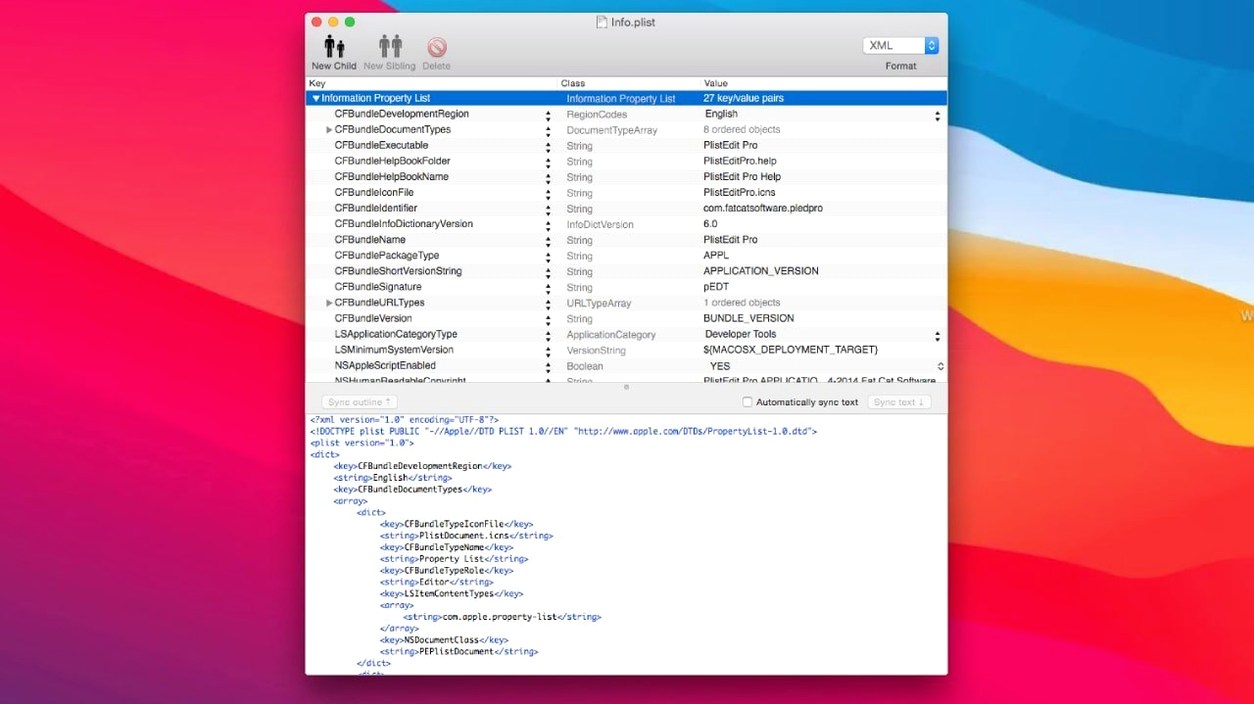
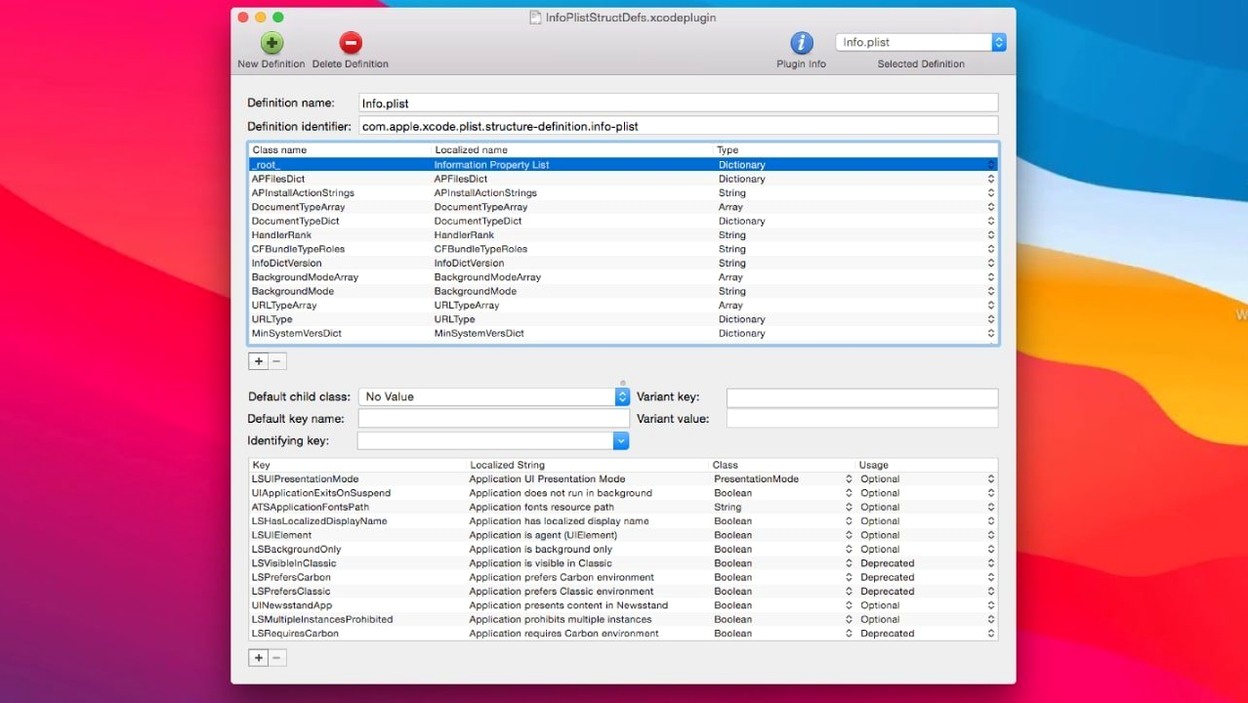
PlistEdit Pro is for developers, admins and tinkerers who spend real time inside property list and JSON files and want tools that keep up. It handles the simple edits quickly, but its real strength is in the deeper features that cut down repetitive work.
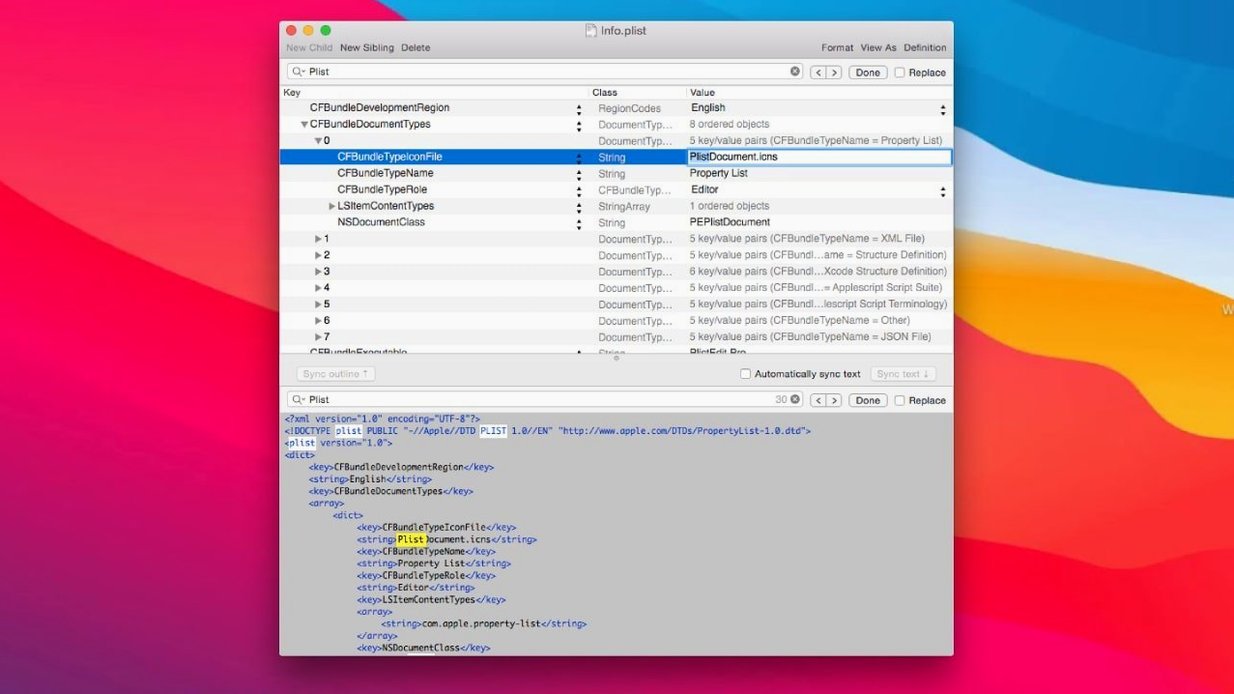
Forget opening files one by one. Point the app at a folder and it scans every plist inside for a key or value you specify — great for tracking down a preference across an entire app bundle.
The outline view lets you grab keys, arrays or whole dictionaries and drop them somewhere else. It respects the format, so you can reorganise nested data without touching raw syntax.
Work in the structured browser when you need clarity, then flip to the plain text view to copy a block or check formatting. The undo stack follows you across both, so nothing gets lost.
Mac and iOS developers sit at the top of the list. They edit Info.plist files, entitlements, launch agents and preference bundles often enough that a dedicated editor pays for itself in avoided syntax slips. The folder search alone saves a chunk of time when a build behaves oddly and the culprit is buried in some nested dictionary.
System admins and support staff benefit too. When a user reports odd behaviour, the prefs browser shows current values without hunting through ~/Library/Preferences by hand. Being able to edit and revert cleanly means fewer support tickets that end in “have you tried deleting the plist?”
People who tinker with Mac utilities — menu bar apps, text expanders, window managers — also get value. Many of those tools store settings as plist files with little or no GUI. PlistEdit Pro gives you a readable view and a safe way to make changes without learning plist syntax cold.
Say a menu bar app keeps forgetting its launch-at-login setting. You open PlistEdit Pro and use the prefs browser to jump straight to the app’s preference file. The outline shows a dictionary with keys like LaunchAtLogin, ShowDockIcon and UpdateCheckInterval.
You spot LaunchAtLogin set to NO. A double-click opens the value, you flip it to YES, and press Return. Then you check UpdateCheckInterval — 86400 seconds, fine. You close the app, reopen it, and the setting sticks.
Next, you remember three other utilities that store similar keys. Instead of opening each one, you point the folder search at ~/Library/Preferences and search for LaunchAtLogin. The results list every file containing that key. You click through, fix the two that are off, and you’re done in under a minute.
Editing values without checking the type. A value that looks like a number might actually be stored as a string. Changing “30” to 60 works, but changing it to sixty can confuse the app reading it. The outline view shows the type clearly — check it before you commit.
Ignoring the plain text view when pasting. Copying a block from a web forum or a colleague’s note and pasting it straight into the outline can create mismatched containers. Switch to the text view, paste, and flip back. The parser will flag anything that doesn’t fit.
Forgetting the undo stack. PlistEdit Pro supports multi-level undo, but beginners sometimes close the file to “start over” and lose the undo history. If an edit goes sideways, undo it in place rather than reverting the whole file.
Skipping the structure definitions. The built-in definitions for standard plist files explain what many keys do. Newcomers often ignore them and guess. A quick look at the definition for Info.plist or a launch agent can save a wrong edit.
Good to know: the pledit command-line tool can run the same edits from a script, which is handy once you have a change you apply to many Macs.
Yes, you can search an entire folder of plist files for a specific key or value without opening each file individually.














Chat 0
Hop in or make an account to join the chat.
Quiet in here so far. If you have used this build, tell me what the install actually did.