
 PopClip
 Principle
 Prizmo Pro
 ProPresenter
 Plugin Alliance Brainworx bx_mastering studio
 PlistEdit Pro
 QLab
QLab Plasticity


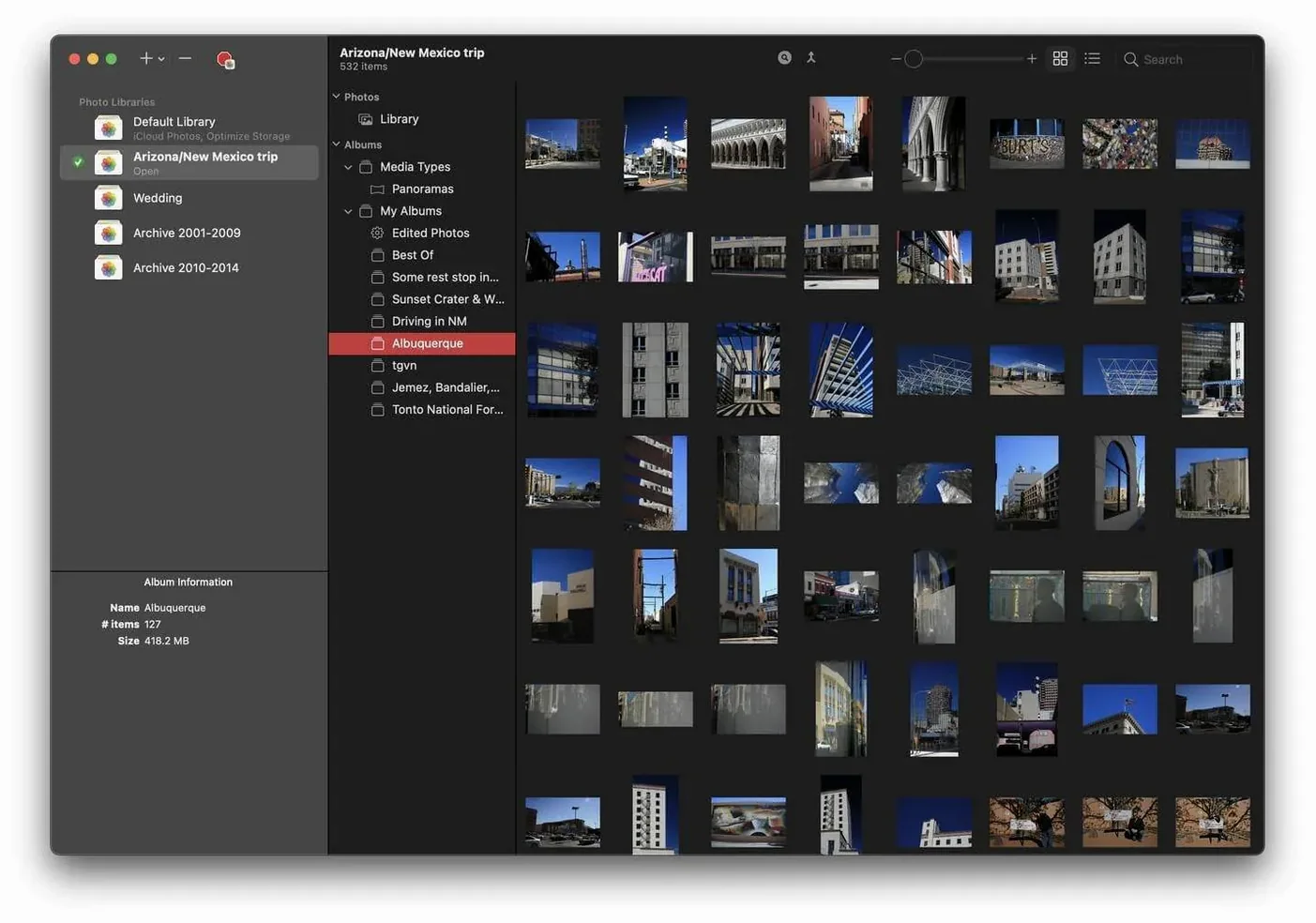
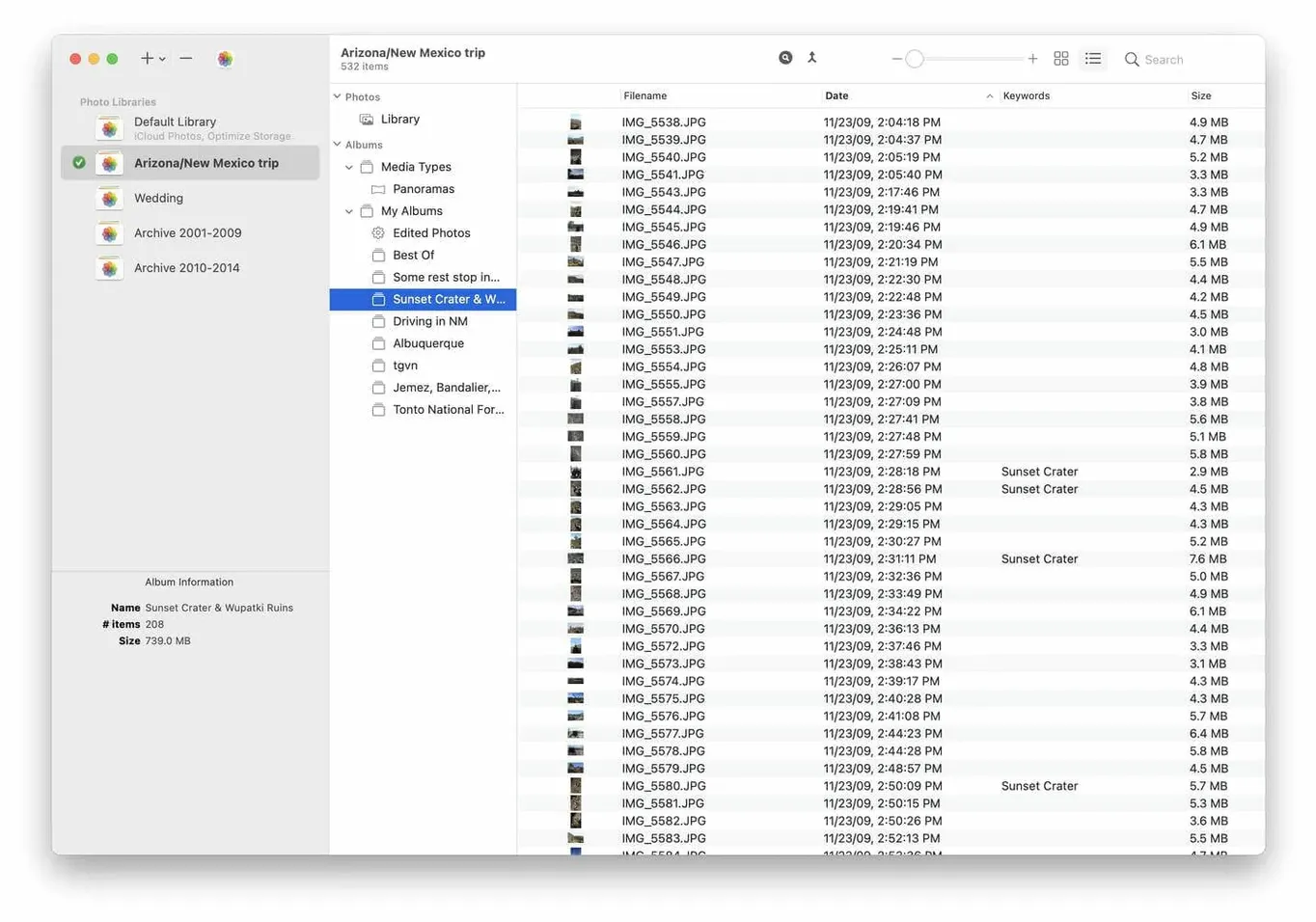
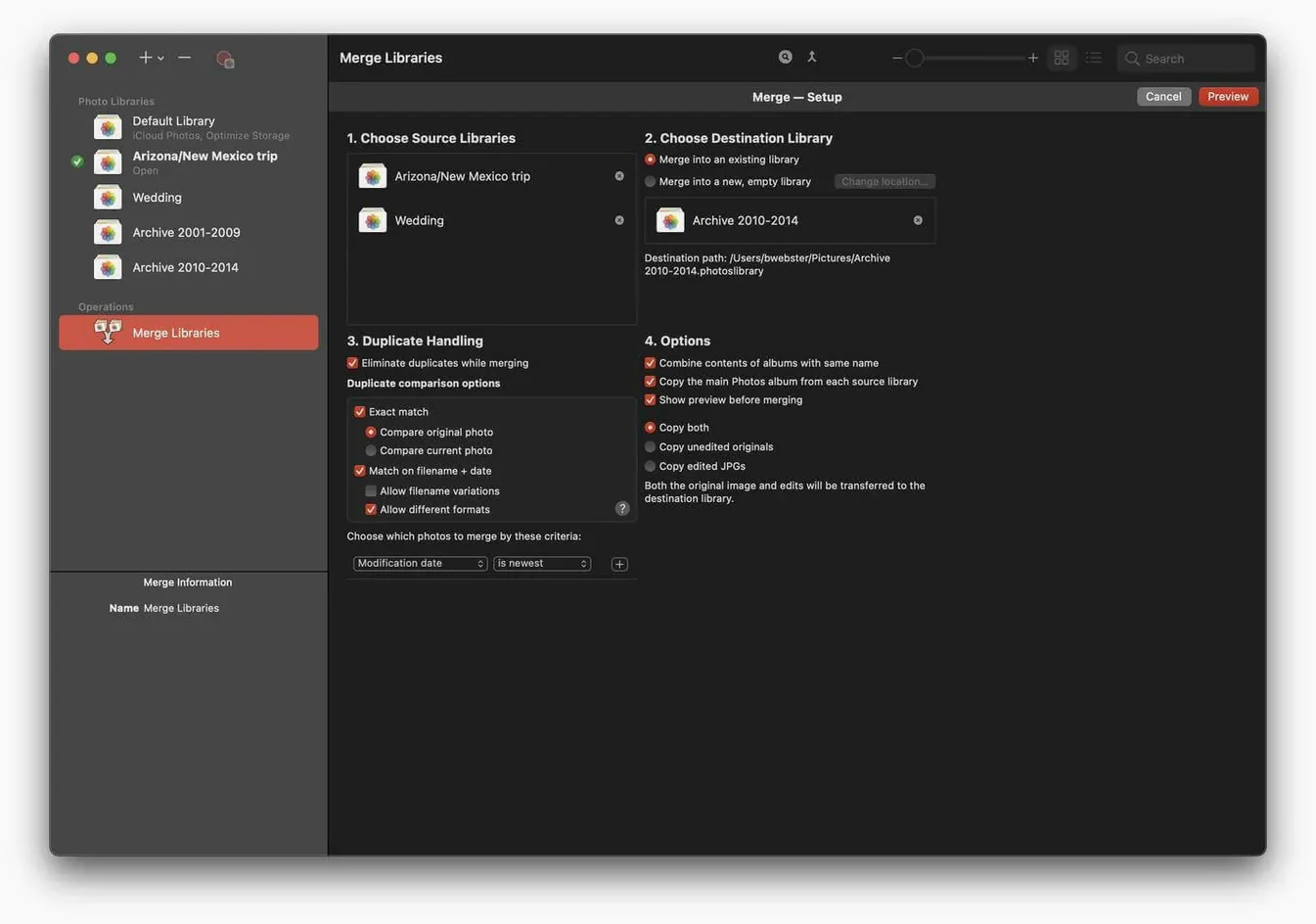
PowerPhotos 3 keeps the focus on what it does best: giving you control over sprawling Mac photo collections. No headline features this time around, just a steady, reliable build from Fat Cat Software that continues to work smoothly on both Apple Silicon and Intel Macs. If you have been putting off cleaning up years of shots, here is one way to start.
This approach helps reduce iCloud storage use because you can keep only your current library synced and archive the rest locally. Switching between libraries is quick from the app window too, so nothing feels buried.
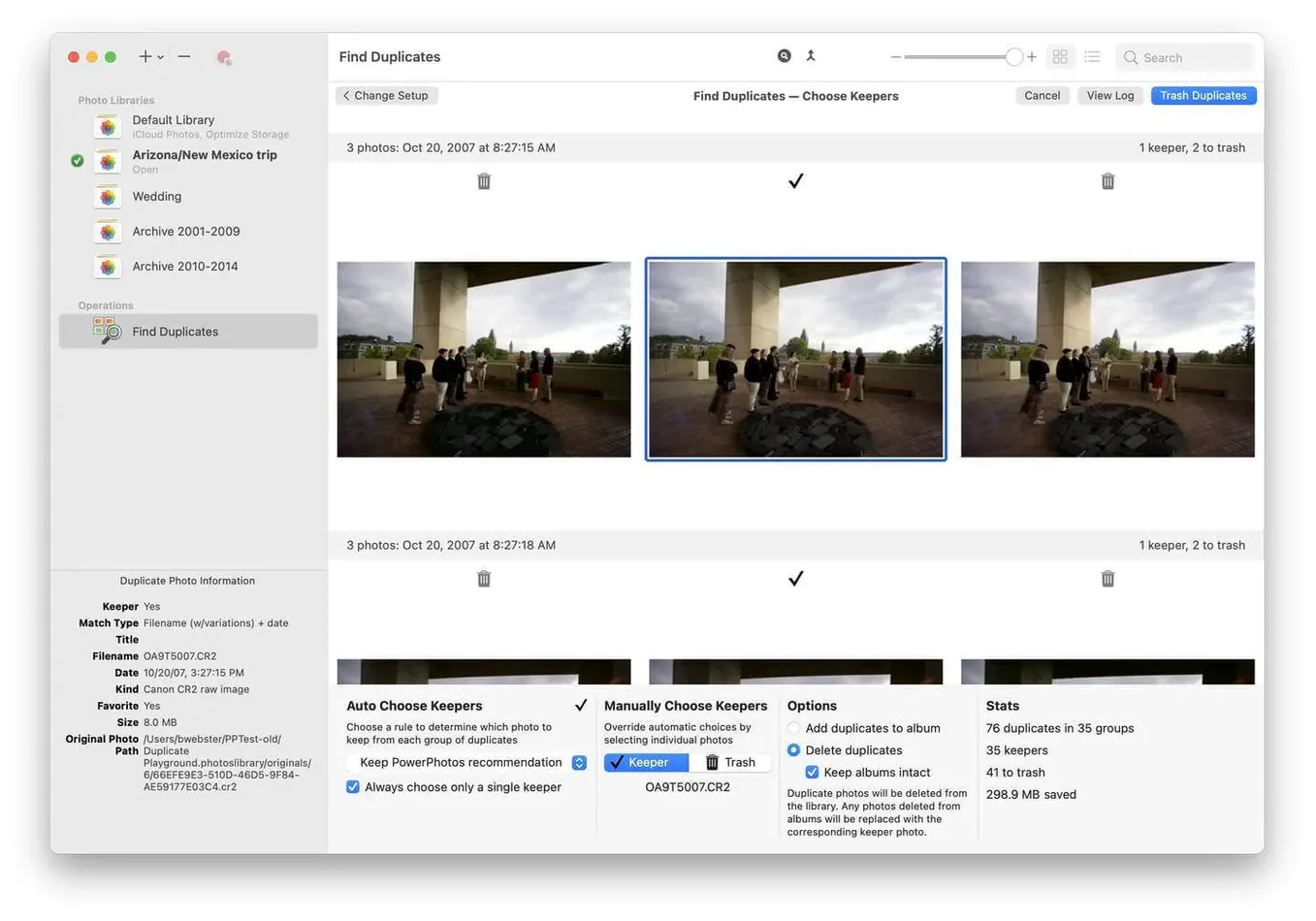
Version 3.4.8 landed as a maintenance release, and the adjustments are subtle but practical. The build tightens how PowerPhotos hands off large duplicate scans on Apple Silicon — fewer beachballs when sifting through libraries with 80,000‑plus images. Scrolling through side‑by‑side matches also feels snappier, and the library switching menu now respects dark mode consistently across Sonoma and newer releases. One small but welcome tweak: the duplicate‑scan progress bar gives a more accurate read on remaining time instead of hanging at 90 % for minutes. If you run multiple libraries across different external drives, you will notice fewer permission prompts mid‑session too.
Duplicate Photo Cleaner scans folders, not the Photos app database, so it works outside Apple’s ecosystem. That makes it broader for random image piles on a drive, but it does not understand Photos‑specific metadata or album structure. PowerPhotos, by contrast, reads libraries natively and leaves the database intact while removing duplicates. If your whole collection lives inside Photos, PowerPhotos is the cleaner fit.
Gemini 2 has a flashier interface and scans for similar files beyond photos, but its duplicate detection leans on visual similarity algorithms that can flag near‑identical edits as duplicates. PowerPhotos sticks to exact duplicates by default, which means fewer false positives when you have bracketed exposures or burst sets you want to keep. Where Gemini 2 pulls ahead is scanning the entire Mac; PowerPhotos stays inside the Photos sandbox.
Apple added a basic duplicate merge to Photos itself, but it works on one library at a time and offers no side‑by‑side comparison. PowerPhotos gives you the pair view plus the ability to hunt duplicates across several libraries at once — useful when you have split a large library and later realise the same photos crept into two of them.
Jumping straight into a duplicate scan without a recent backup is the most common slip. The app handles deletions cleanly, but a power cut or drive disconnect mid‑cleanup can leave inconsistencies. Another early habit is splitting libraries too aggressively — creating a dozen tiny libraries sounds organised until you need to find one photo across all of them and realise the search scope is now fragmented. Start with two or three broad libraries instead. Finally, some people assume PowerPhotos duplicates are always safe to delete without checking the metadata side panel; one version may have captions or keywords the other lacks, so a quick glance before clicking Remove saves later frustration.
Yes, by separating your photos into multiple libraries, you can choose to sync only one library to iCloud and keep other archives local.














Chat 0
Hop in or make an account to join the chat.
Quiet in here so far. If you have used this build, tell me what the install actually did.